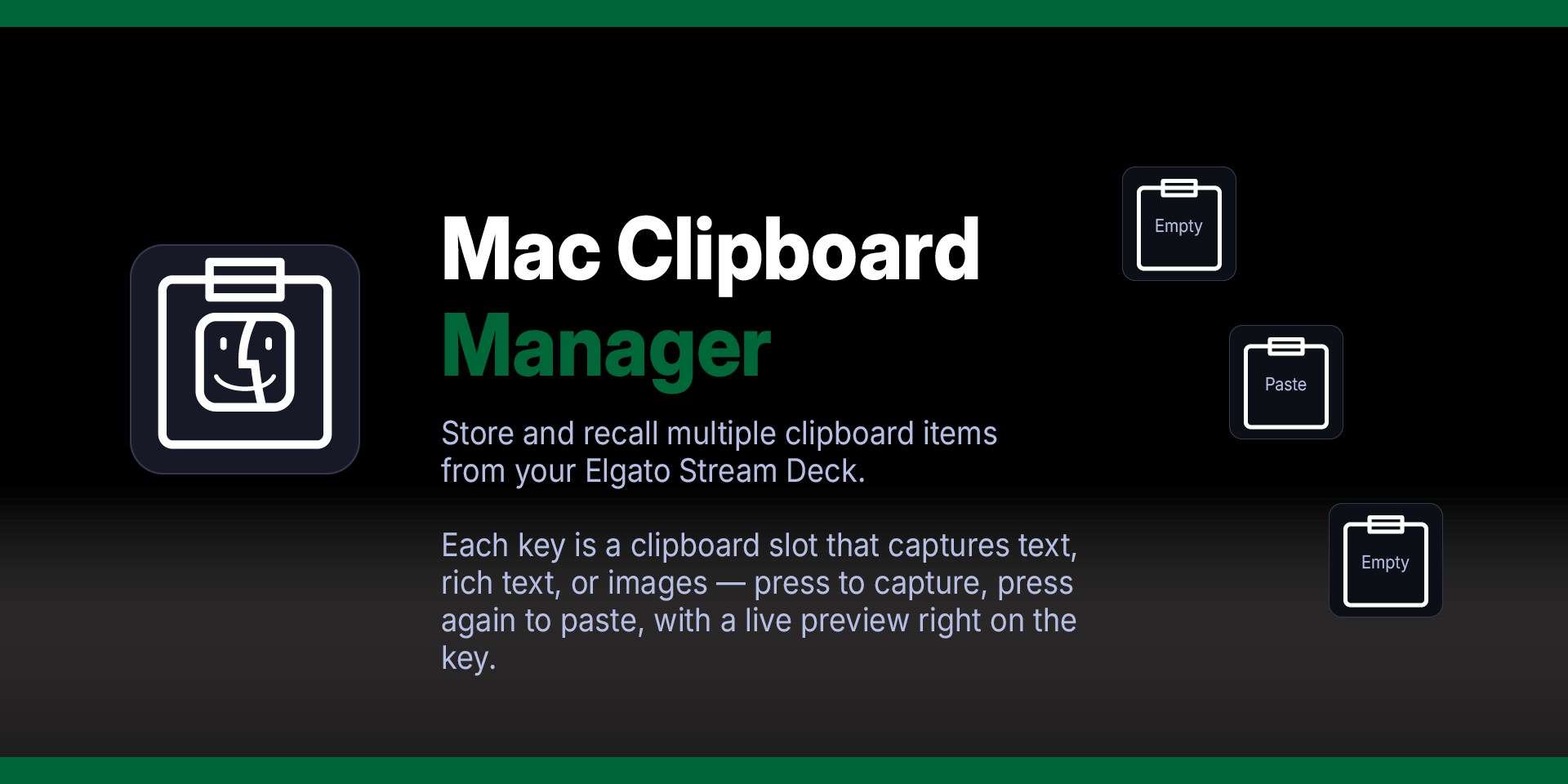

Mac Clipboard Manager Plugin for Stream Deck
What’s Included
Mac Clipboard Manager plugin (com.deckly.mac-clipboard-manager.sdPlugin)
Plugin Installation Guide
For macOS ONLY
Version 1.3.0.0
Added Finder file support — copy files or folders in Finder, capture to a slot, and paste them into Messages, Mail, or any app that accepts file attachments
Improved key title readability — removed emoji prefixes and stripped file extensions for cleaner display on Stream Deck buttons
Detection priority is now: file references → images → rich text → plain text
Fixed Unicode text handling for non-English languages (Korean, Japanese, Chinese, and other Unicode text)
Mac Clipboard Manager Plugin
Stream Deck Plugins for Mac OS
Your clipboard can only hold one thing at a time. Mac Clipboard Manager gives you as many clipboard slots as you have Stream Deck keys.
Copy something — text, rich text, or an image — press a slot key, and it's stored. The key instantly shows a preview of what you captured and what type it is. Need it again? Press the same key and it's pasted into whatever app you're working in. Long press to clear a slot and start fresh.
Capture an image from Illustrator, a formatted paragraph from Pages, and a code snippet from your editor — all stored on separate keys, all pasteable with a single press. Each slot persists across Stream Deck restarts.
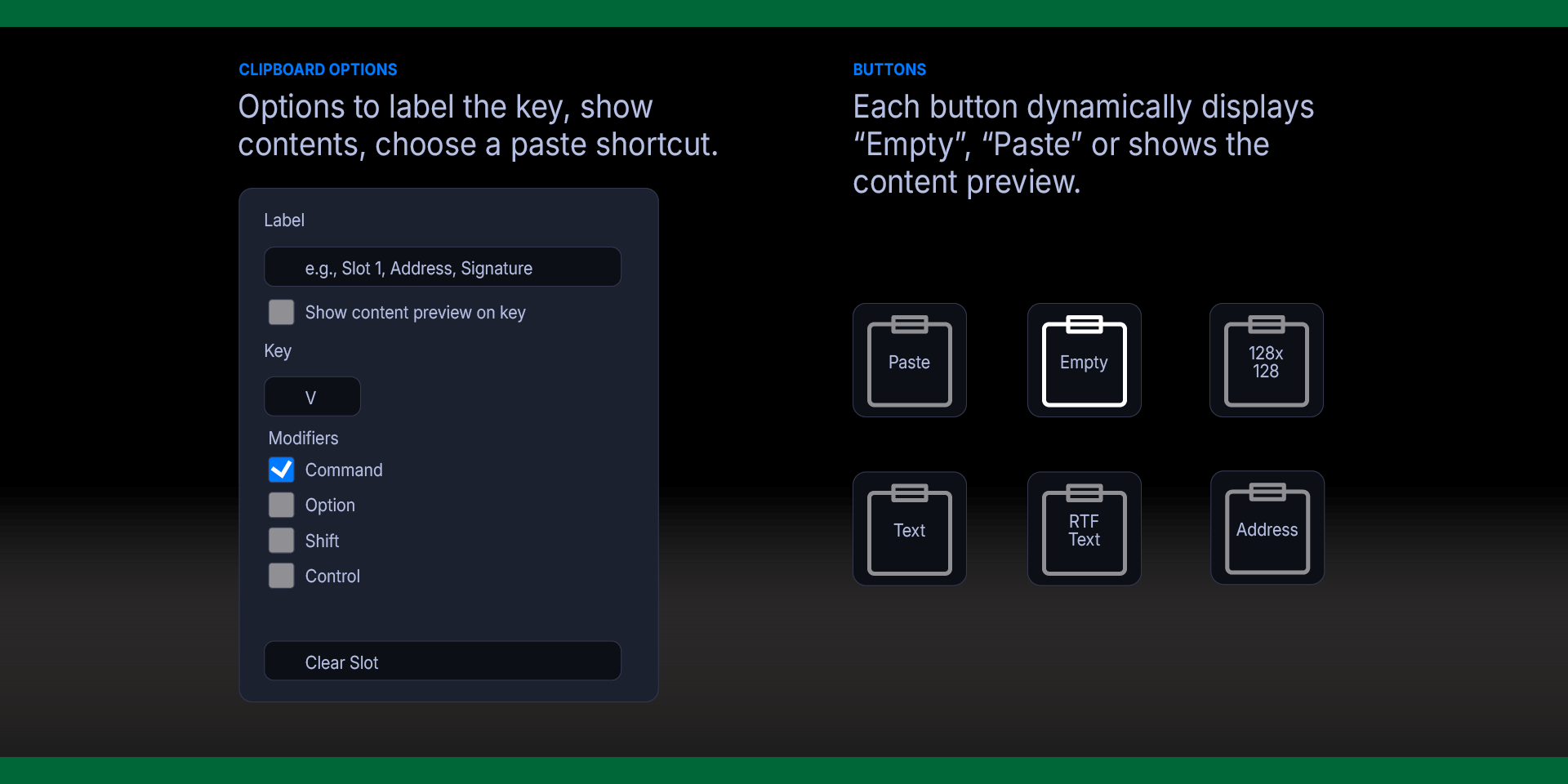
The key icon changes dynamically to show the content type: text lines for plain text, formatted lines for rich text, or a landscape thumbnail for images. You'll always know what's in each slot at a glance.
No subscription, no cloud sync, no background processes. Just fast, local clipboard slots that live on your Stream Deck.
Works with every Stream Deck model on macOS.
Mac Clipboard Manager Plugin
Features:
Three content types — captures plain text, rich text (RTF), and images (PNG/TIFF) from any app.
Capture & paste — press an empty slot to capture the current clipboard; press a filled slot to paste its contents.
Auto type detection — the plugin checks the clipboard and captures the richest type available: image → rich text → plain text.
Live preview — each key displays a word-wrapped preview of stored text, or dimensions for images. Content type indicators (🖼 for images, 📝 for RTF) appear on the key.
Dynamic icons — the clipboard icon on each key changes to reflect the content type: text lines, formatted text with highlights, or a landscape image graphic.
Long press to clear — hold a filled slot for half a second to clear it.
Persistent storage — text is saved in settings; images and RTF are saved to temp files. All survive app restarts.
Custom labels — name your slots ("Logo", "Signature", "Address") for quick identification.
Unlimited slots — add as many keys as you need.
How It Works
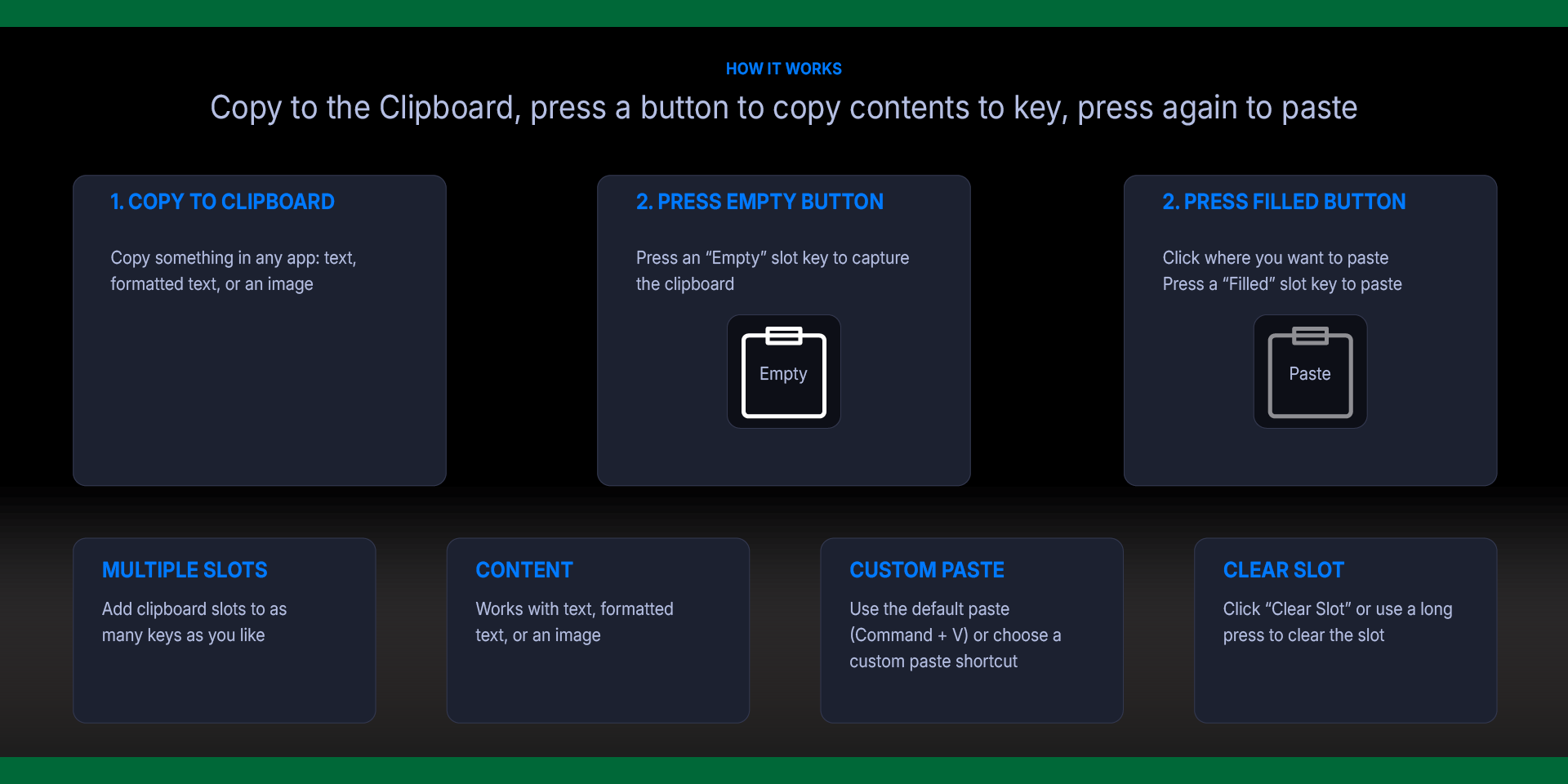
Capture Content
Copy something in any app (Cmd+C): text, formatted text, or an image
Press an empty slot key
The key captures the clipboard and shows a preview
A ✓ confirms the capture
Paste Content
Click where you want to paste
Press a filled slot key
The stored content is pasted at the cursor
A ✓ confirms the paste
Clear a Slot
Long press (hold 0.5s) to clear
Or click Clear Slot in the Property Inspector
Requirements
macOS 12 (Monterey) or later
Elgato Stream Deck software version 6.9 or later
Accessibility permission granted to Stream Deck
What’s Included
Menu Clipboard Manager Plugin (com.deckly.mac-clipboard-manager.sdPlugin)
Plugin Installation Guide
Version 1.3.0.0
Added Finder file support — copy files or folders in Finder, capture to a slot, and paste them into Messages, Mail, or any app that accepts file attachments
Improved key title readability — removed emoji prefixes and stripped file extensions for cleaner display on Stream Deck buttons
Detection priority is now: file references → images → rich text → plain text
Fixed Unicode text handling for non-English languages (Korean, Japanese, Chinese, and other Unicode text)
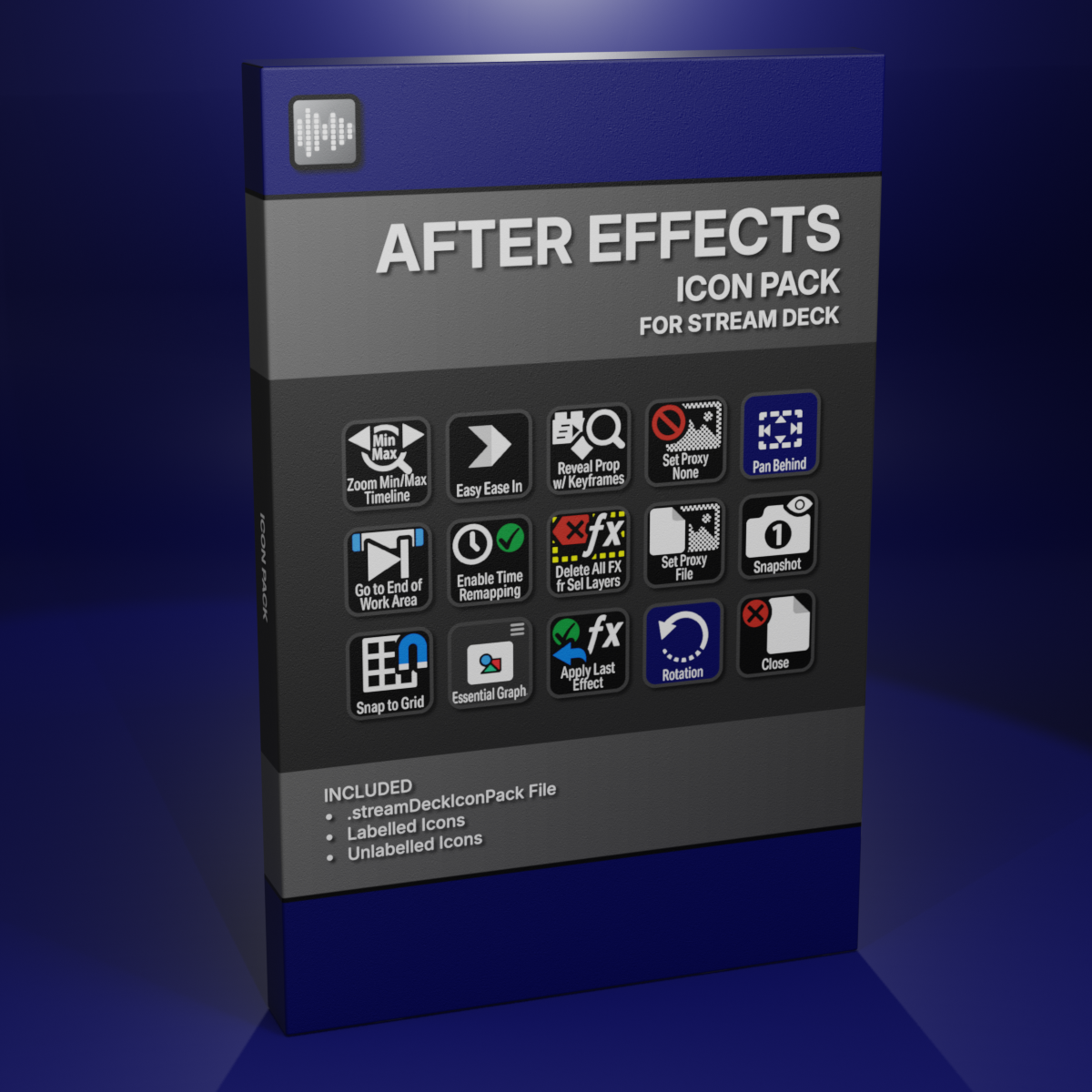
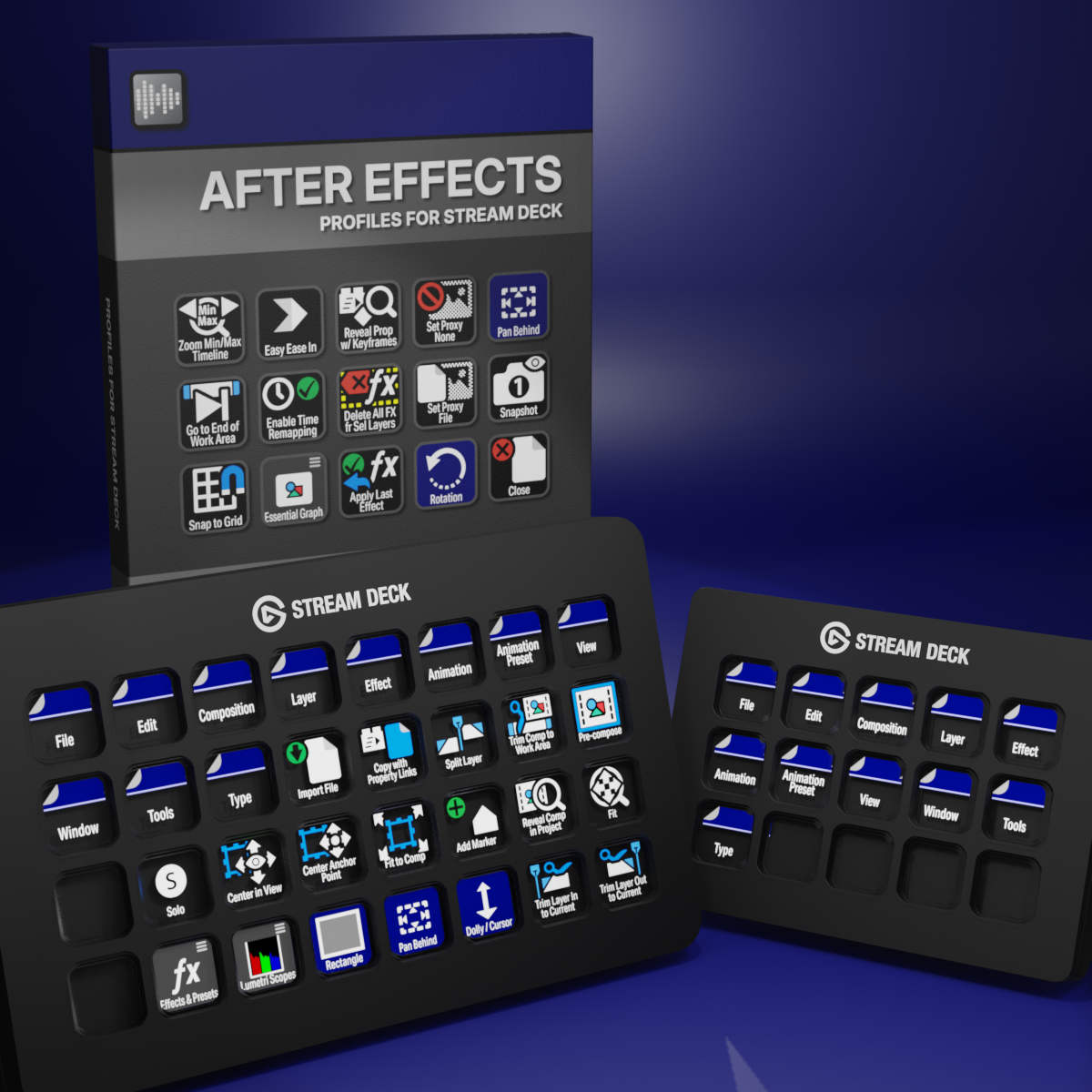
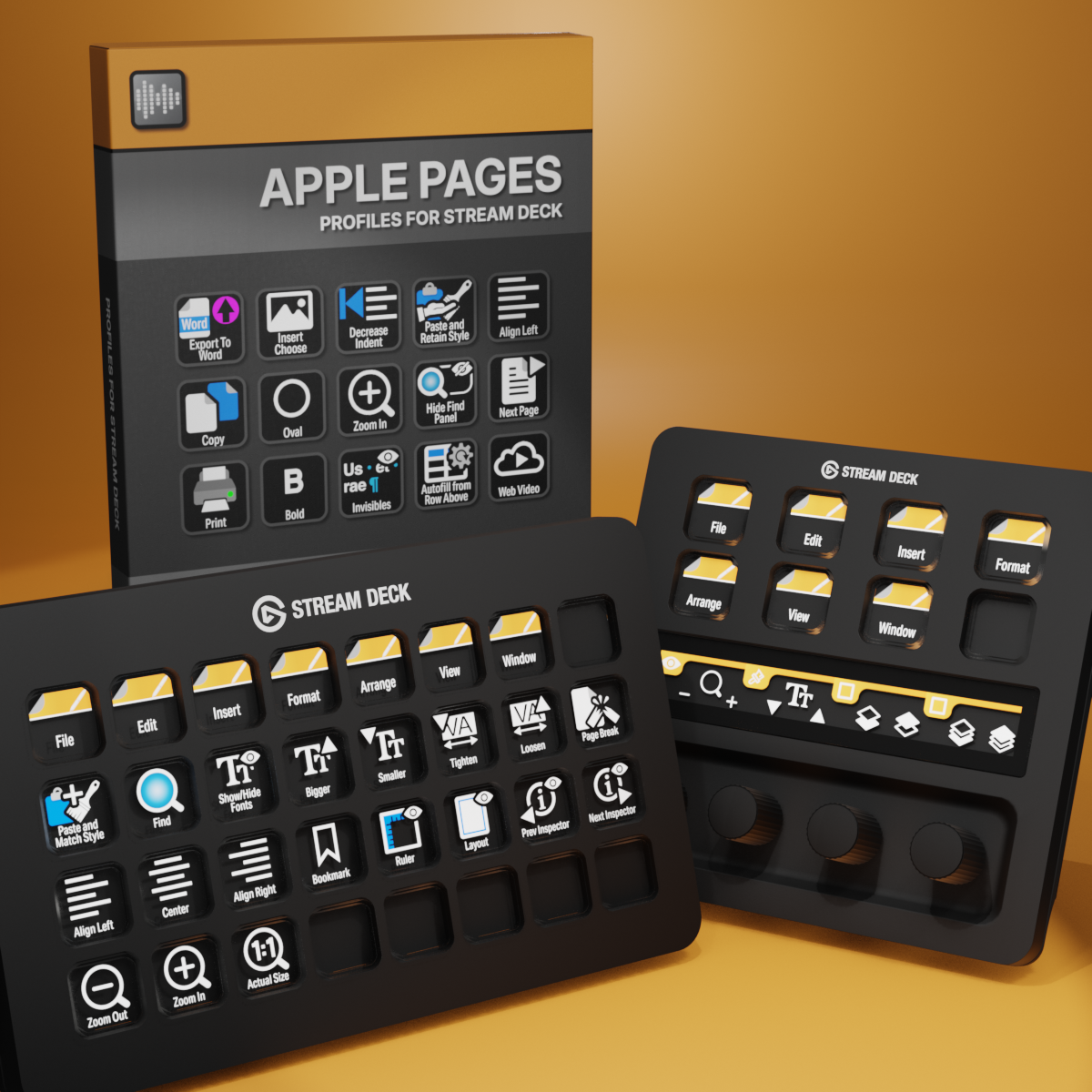
Custom Icons for Adobe After Effects. A sampler pack of both labelled and unlabelled icons for Stream Deck XL and Stream Deck Regular.