Installation
Overview
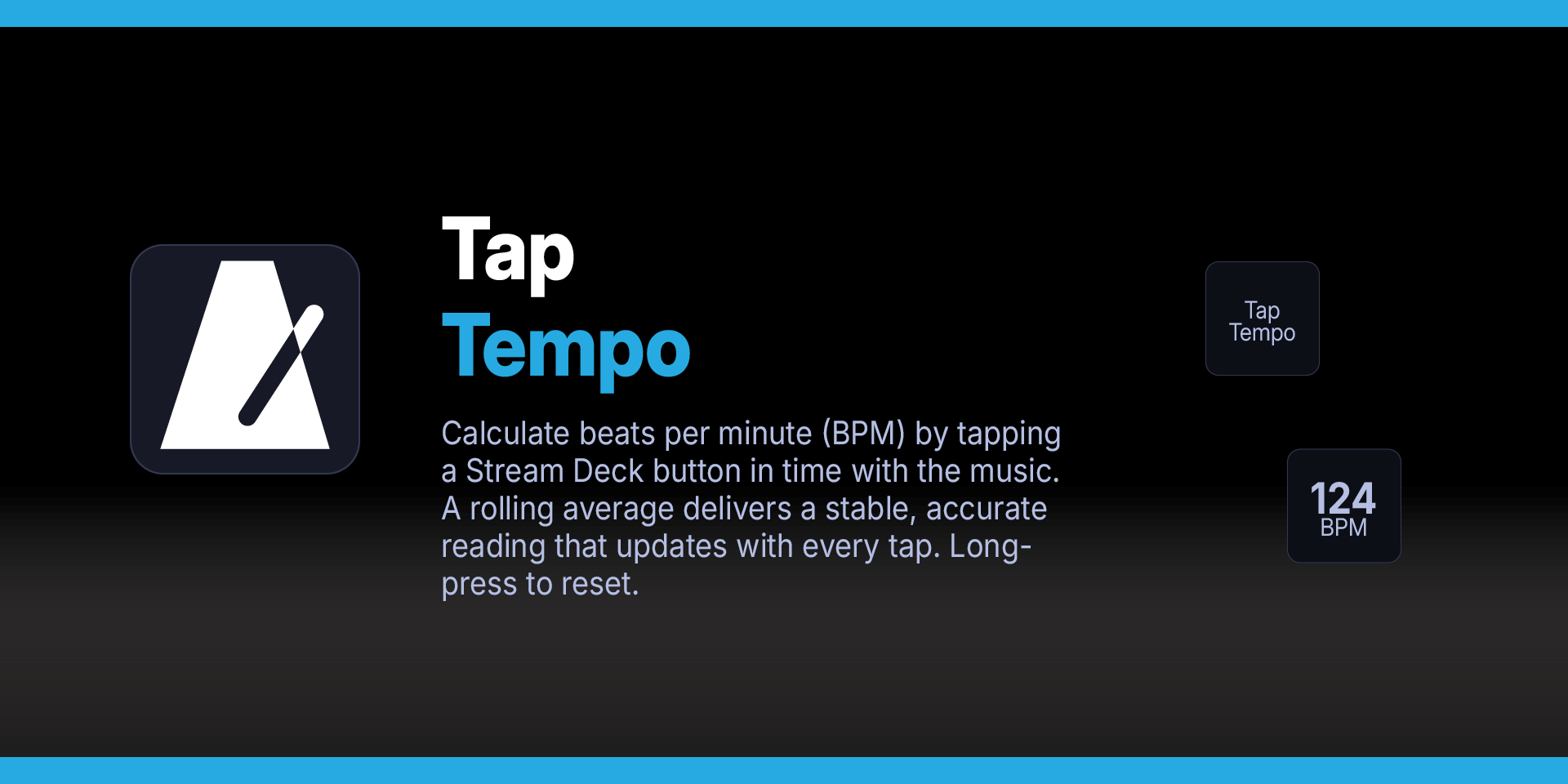
Find the tempo of any song without leaving your Stream Deck. Tap Tempo turns any button into a BPM counter — just tap along with the beat and watch the tempo appear on the key in real time.
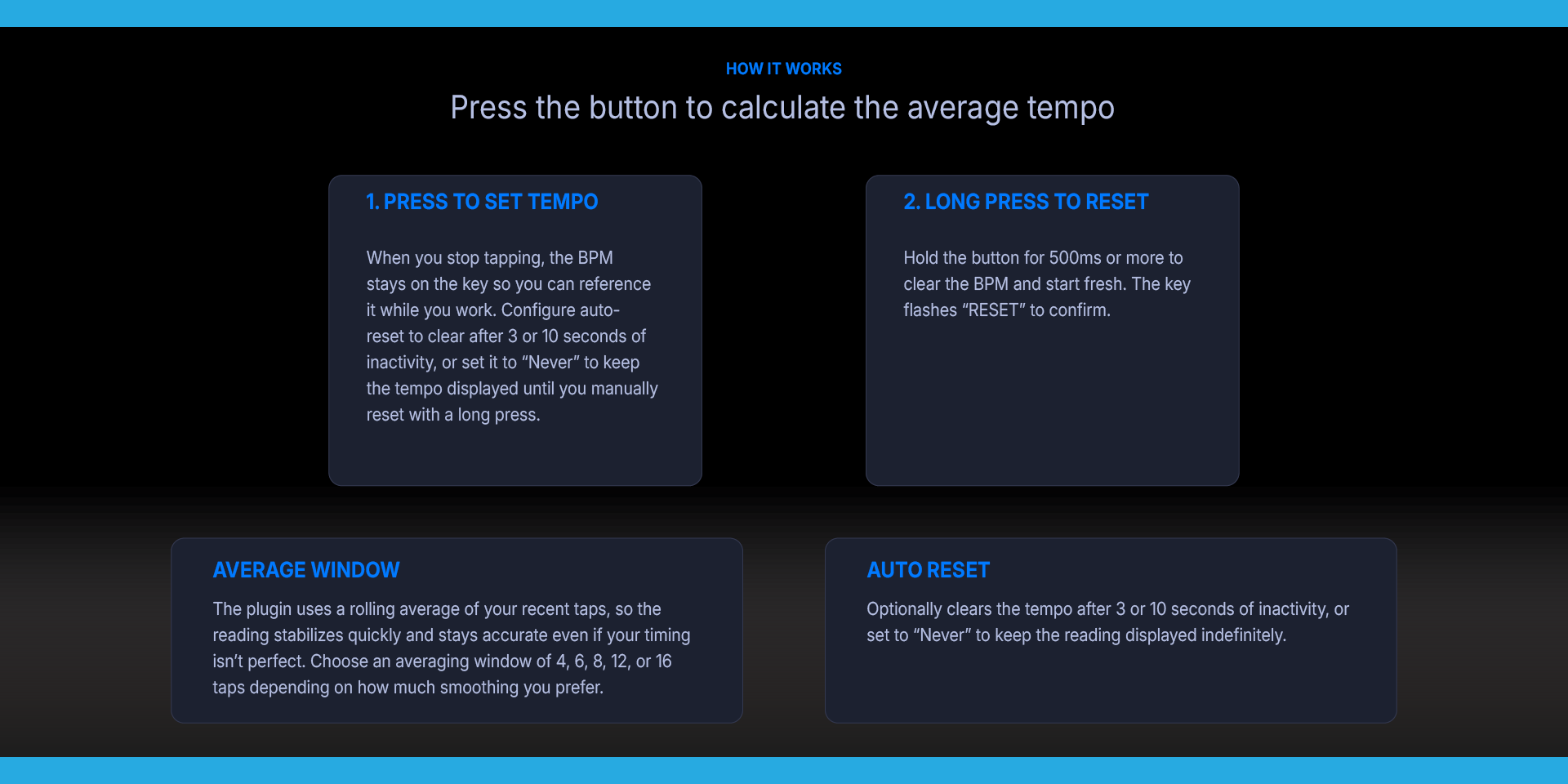
The plugin uses a rolling average of your recent taps, so the reading stabilizes quickly and stays accurate even if your timing isn't perfect. Choose an averaging window of 4, 6, 8, 12, or 16 taps depending on how much smoothing you prefer.
When you stop tapping, the BPM stays on the key so you can reference it while you work. Configure auto-reset to clear after 3 or 10 seconds of inactivity, or set it to "Never" to keep the tempo displayed until you manually reset with a long press.
The button shows "Tap Tempo" when idle, switches to a large BPM readout as you tap, and flashes "RESET" briefly when cleared. No setup required — drag the action to a key and start tapping.
Perfect for musicians matching tempo to a reference track, DJs beatmatching by ear, producers setting project BPM, music teachers demonstrating rhythm, or anyone who needs a quick tempo check without reaching for their phone.
Requirements
macOS 10.15+, Windows 10+
Elgato Stream Deck software version 6.9 or later
Step 1 — Install the Plugin
Install Tap Tempo from the Elgato Marketplace, or double-click the `.streamDeckPlugin` file to install manually. Stream Deck will open automatically, install the plugin, and confirm when it is ready. The plugin will appear under the Mac Finder Tags category in the Actions panel.
If Stream Deck is not already running, double-clicking the file will launch it and complete the installation.
Step 2 — Add the Action
In the Stream Deck app, find "Tap Tempo" in the action list and drag it to a key.
Step 3 — Start Tapping
Press the button rhythmically in time with the beat. The BPM will appear on the key after two taps.
Settings
Open the Property Inspector by clicking the Tap Tempo action in the Stream Deck app.
Avg. Window — how many recent taps to include in the BPM calculation. Options: Last 4, 6, 8 (default), 12, or 16 taps. A larger window produces a more stable reading. A smaller window responds faster to tempo changes.
Auto Reset — how long to wait after your last tap before clearing the BPM display. Options: After 3 seconds (default), After 10 seconds, or Never. "Never" keeps the tempo displayed on the key until you manually long-press to reset.
Long Press — how long you need to hold the button to trigger a reset. Options: 400ms, 500ms (default), 750ms, or 1000ms. Increase this if you find yourself accidentally resetting while tapping at slow tempos.
Troubleshooting
The BPM seems too high or too low
You may be tapping on eighth notes or half notes instead of quarter notes. Try tapping half as fast (if the number is too high) or twice as fast (if too low) to align with the quarter-note pulse.
The reading keeps fluctuating
Increase the averaging window to 12 or 16 taps in the Property Inspector. A larger window smooths out timing inconsistencies.
I accidentally reset while tapping
Increase the long-press threshold. The default is 500ms — try 750ms or 1000ms if you tend to hold the button slightly longer on some taps.
The BPM disappeared while I was away
The auto-reset timer cleared it. If you want the tempo to persist, set Auto Reset to "Never" in the Property Inspector..
What’s Included
Tap Tempo Plugin (com.deckly.taptempo.streamDeckPlugin)
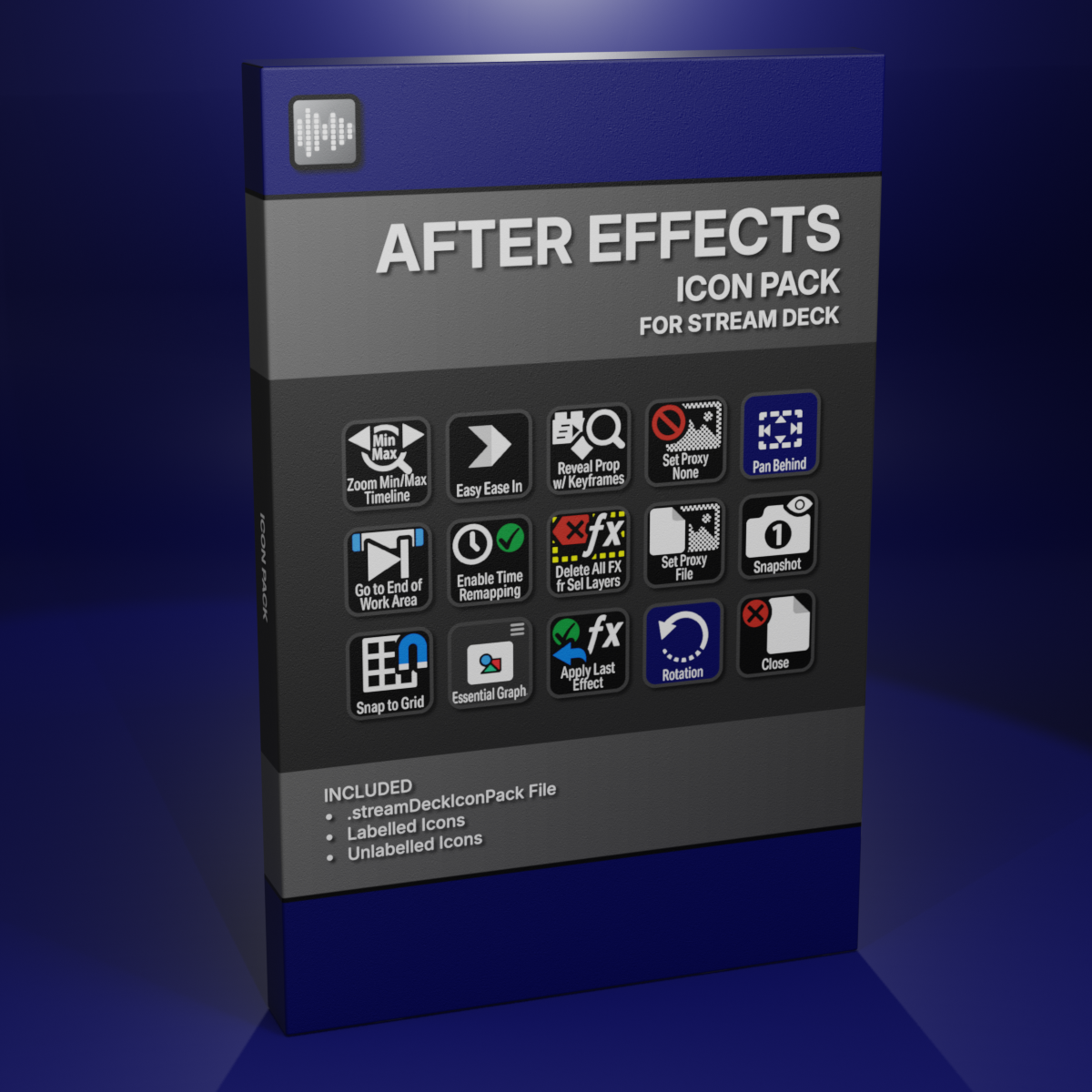
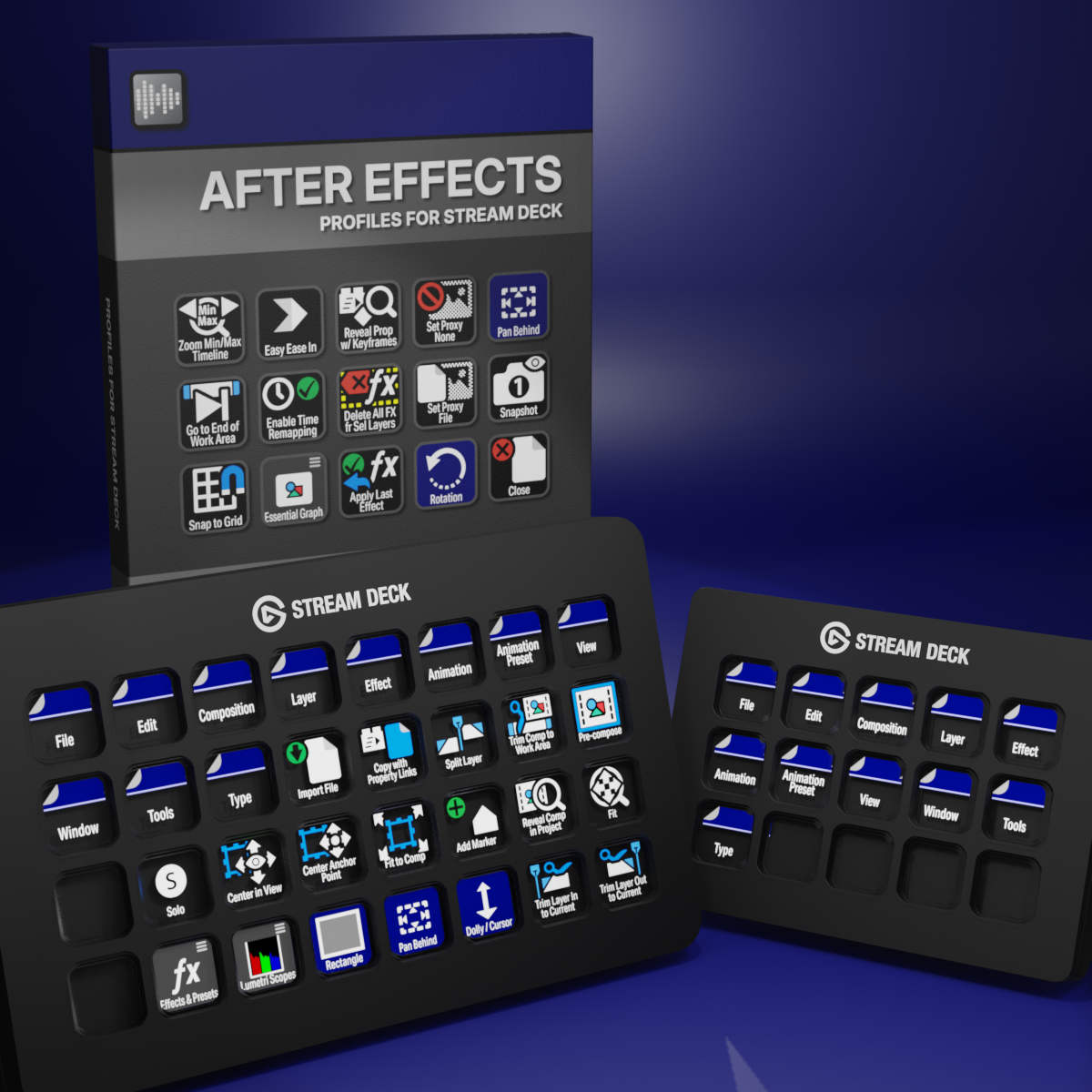
Custom Icons for Adobe After Effects. A sampler pack of both labelled and unlabelled icons for Stream Deck XL and Stream Deck Regular.