Installation
Overview
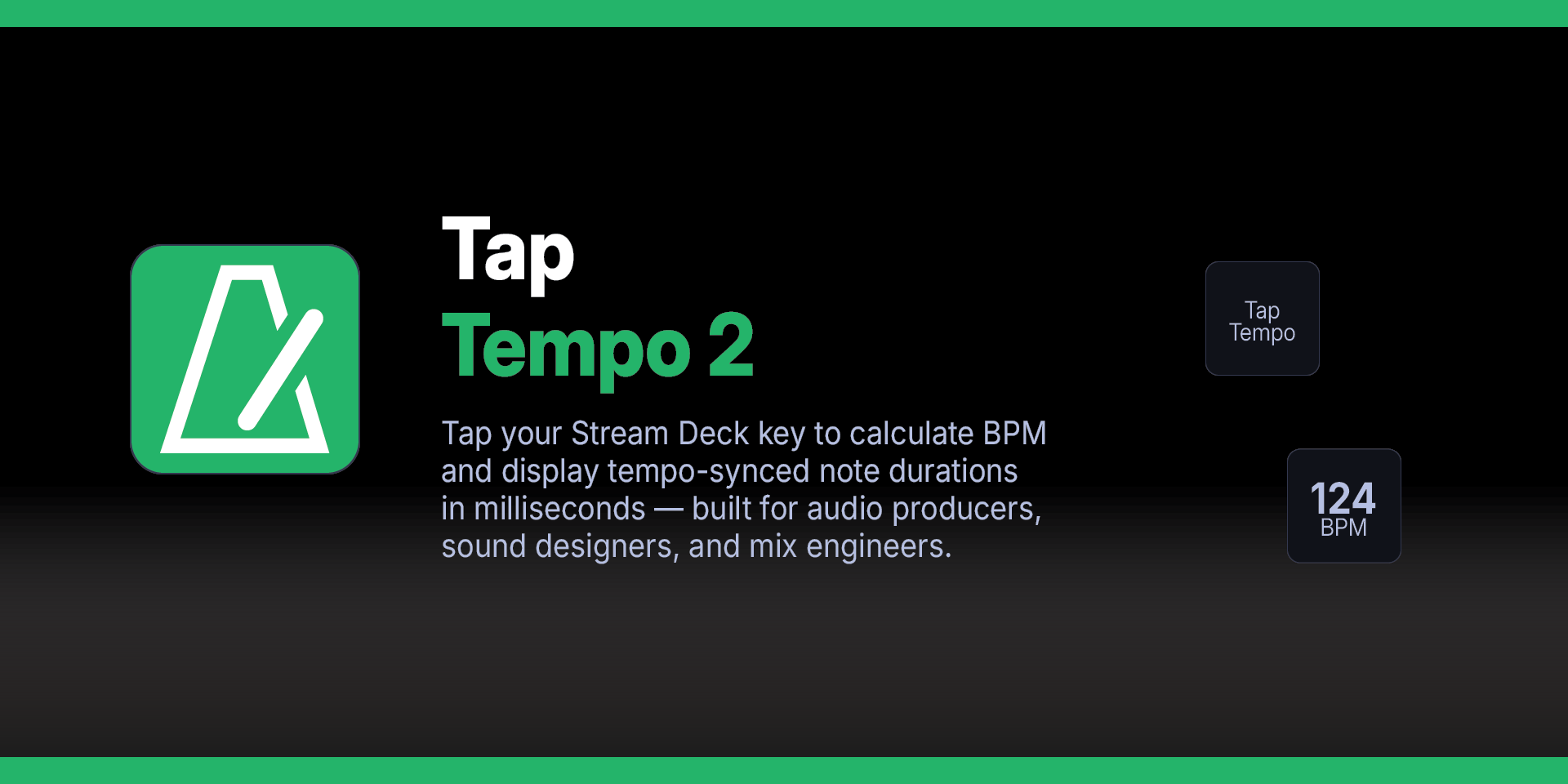
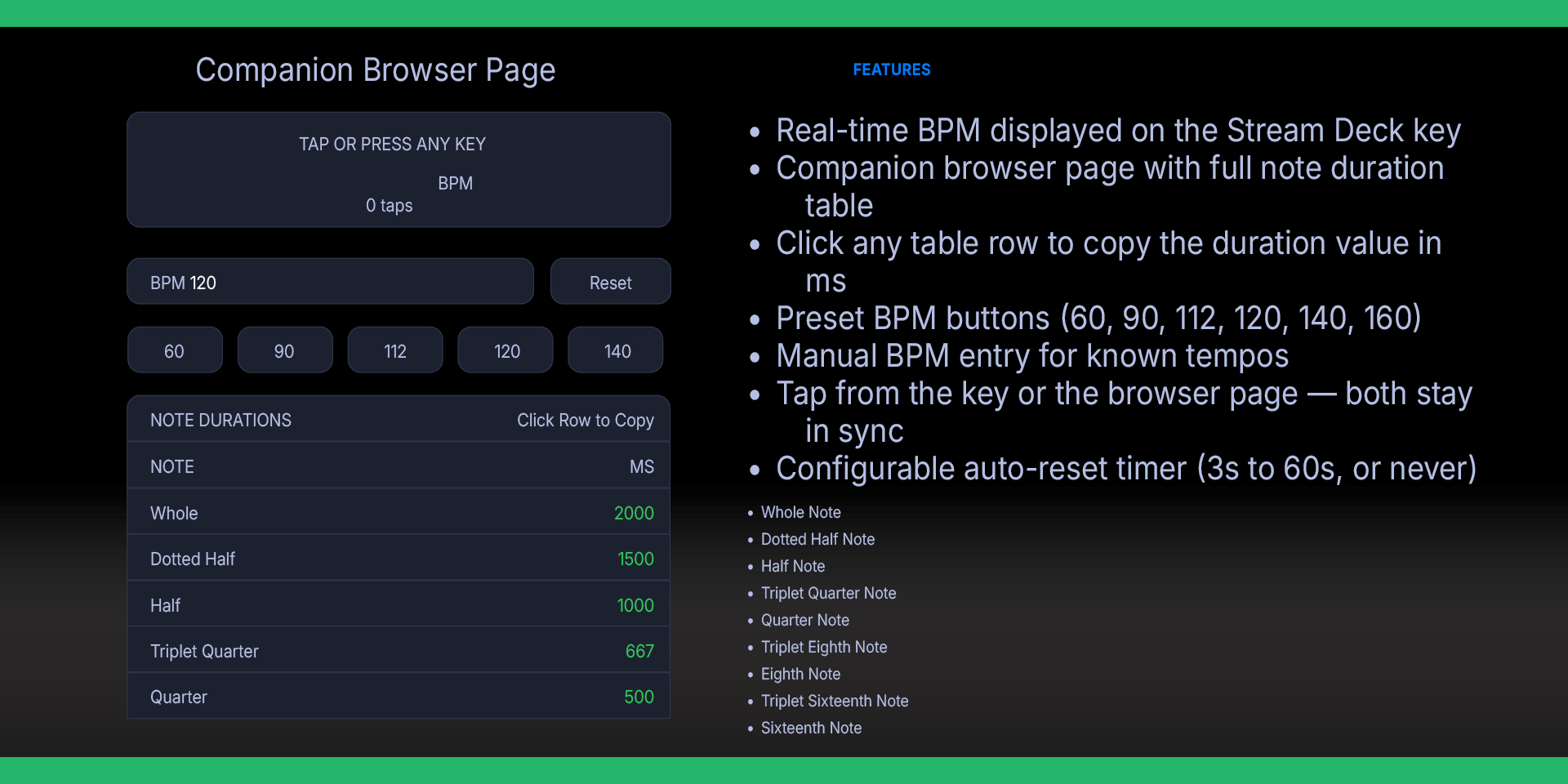
Tap the Stream Deck key to calculate BPM in real-time. Long-press to open a companion browser page with a full tempo display and note duration table, updated live via WebSocket. Designed for audio producers, sound designers, and mix engineers who need tempo-synced timing values in milliseconds.
Features
Real-time BPM on the Stream Deck key (SVG rendering)
Companion browser page with note duration table (whole, dotted half, half, quarter, eighth, sixteenth + triplets)
Click any table row to copy the duration in milliseconds
Preset BPM buttons (60, 90, 112, 120, 140, 160)
Manual BPM entry via input field
Keyboard support on the browser page (Space / Enter to tap)
Bidirectional sync — tap on the key or the page, both update
Connection status indicator on the browser page
Configurable auto-reset timer (3s to 60s, or never)
Configurable WebSocket port (advanced)
Auto-reconnect if the plugin restarts
Cross-platform: macOS and Windows
Requirements
macOS 10.15+, Windows 10+
Elgato Stream Deck software version 6.9 or later
Step 1 — Install the Plugin
Install Tap Tempo from the Elgato Marketplace, or double-click the `.streamDeckPlugin` file to install manually. Stream Deck will open automatically, install the plugin, and confirm when it is ready. The plugin will appear under the Mac Finder Tags category in the Actions panel.
If Stream Deck is not already running, double-clicking the file will launch it and complete the installation.
Step 2 — Add the Action
In the Stream Deck app, find "Tap Tempo 2" in the action list and drag it to a key.
Step 3 — Start Tapping
Press the button rhythmically in time with the beat. The BPM will appear on the key after two taps.
How It Works
Tap the key — each press registers a tap. BPM is calculated from the average interval between taps (up to 8 taps buffered).
Key icon updates — the Stream Deck key shows the current BPM with an SVG-rendered display.
Long-press the key (hold 1 second) — opens the companion page in your default browser.
Companion page — connects to a local WebSocket server run by the plugin. Taps from either the key or the browser page are synced bidirectionally.
Auto-reset — the tap buffer resets after a configurable period of inactivity (default 5 seconds).
Port
The plugin runs a local WebSocket server on port 9876 by default. If this conflicts with another service, change the port in the Advanced section of the Property Inspector. A Stream Deck restart is required after changing the port.
What’s Included
Tap Tempo Plugin (com.deckly.taptempo2.streamDeckPlugin)
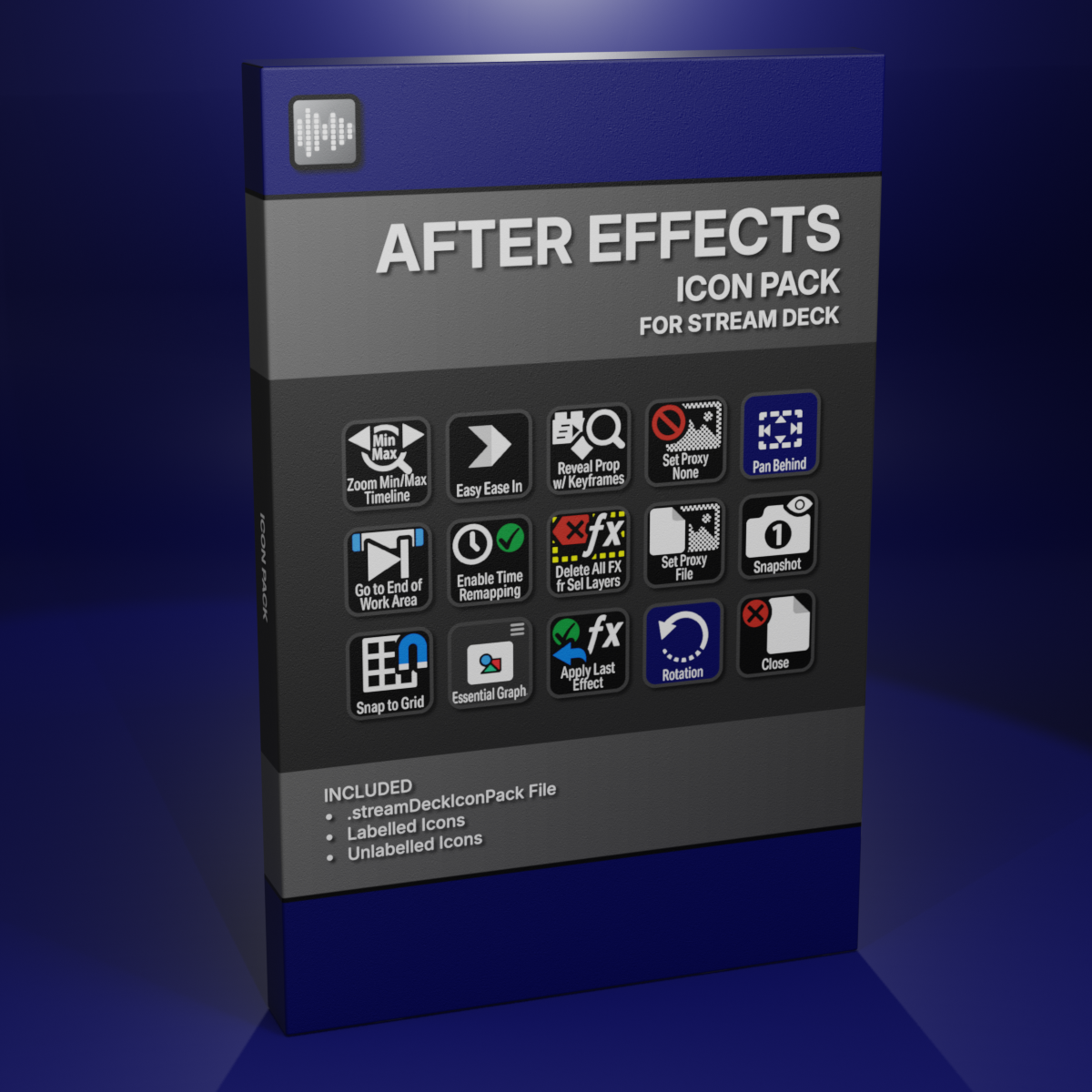
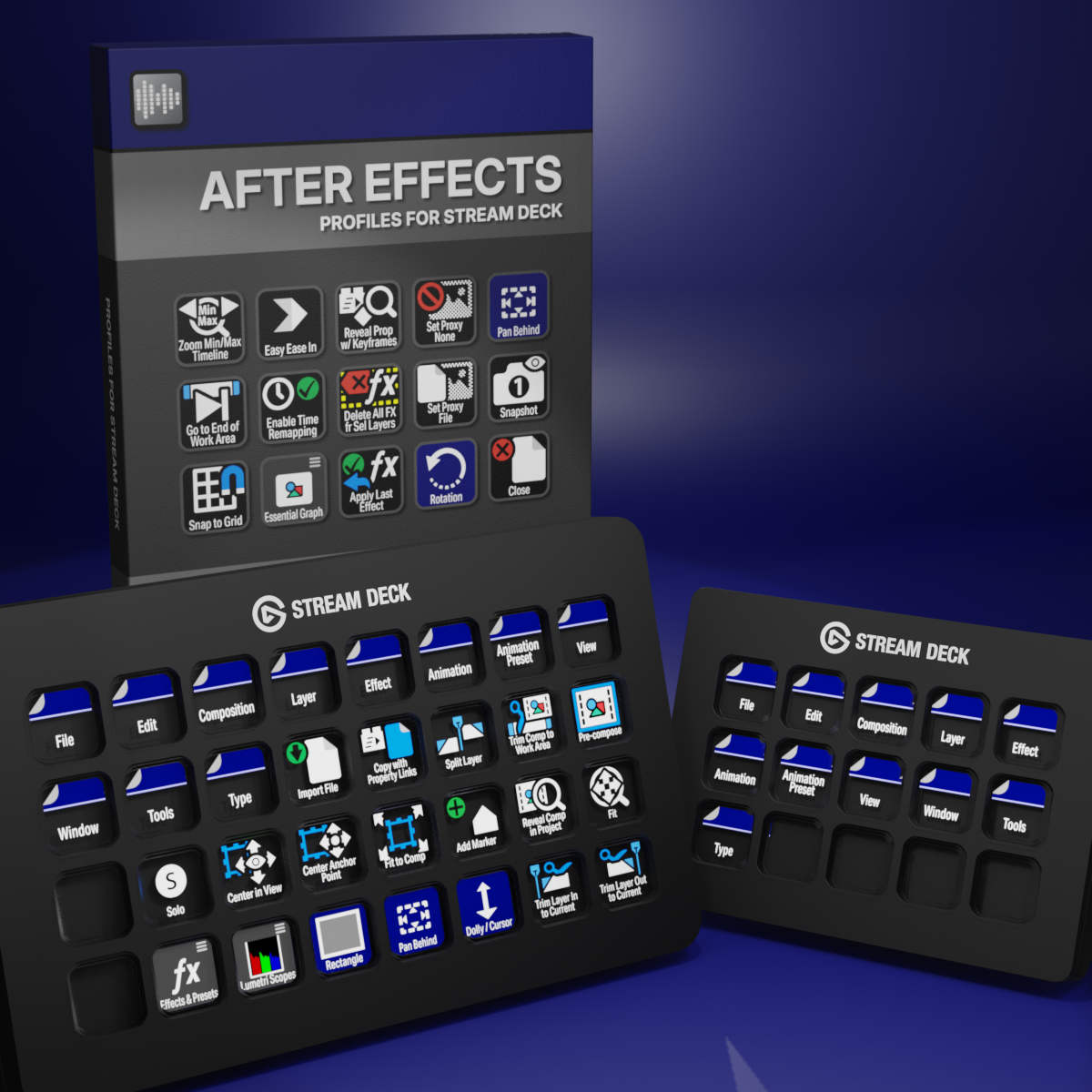
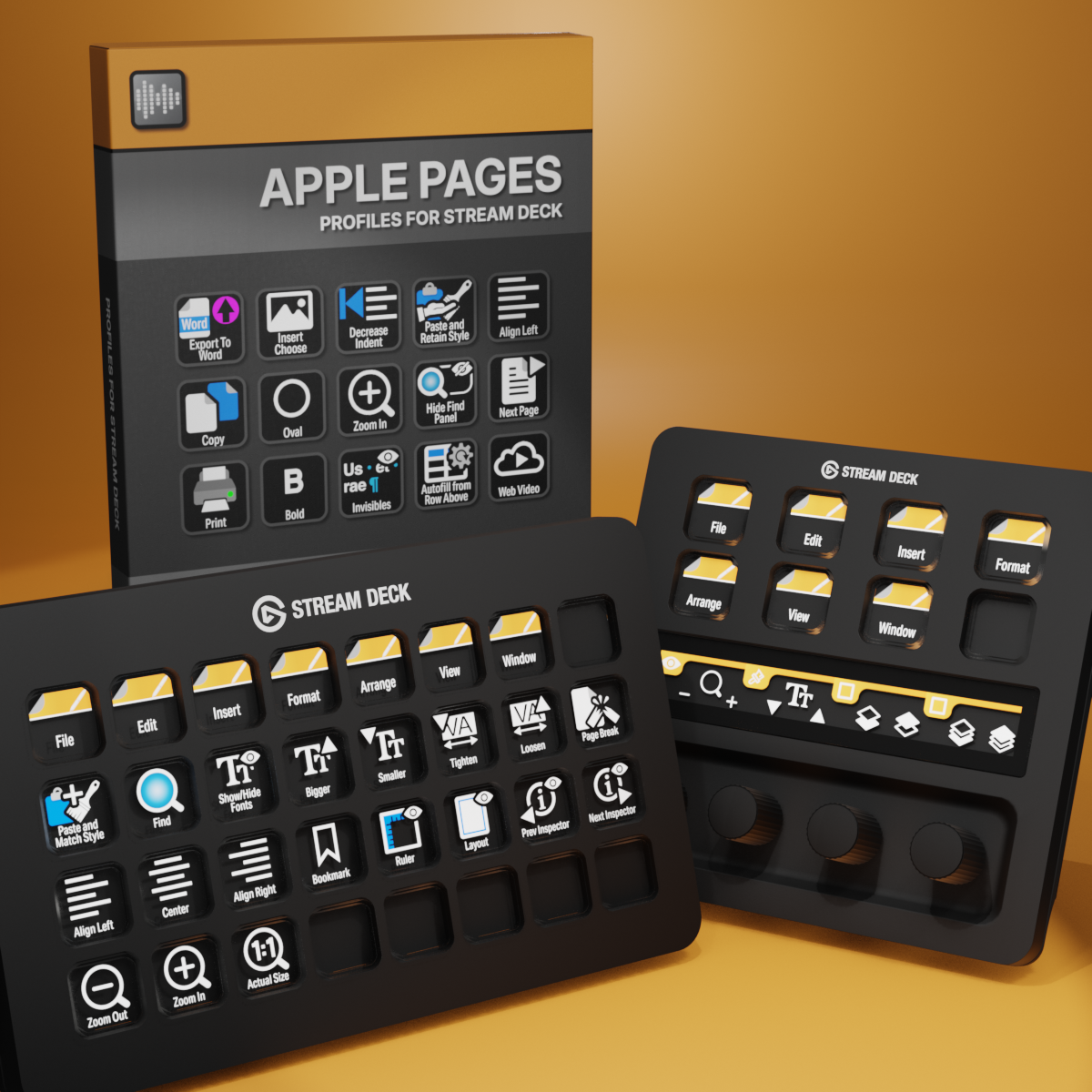
Custom Icons for Adobe After Effects. A sampler pack of both labelled and unlabelled icons for Stream Deck XL and Stream Deck Regular.