Installation
Overview
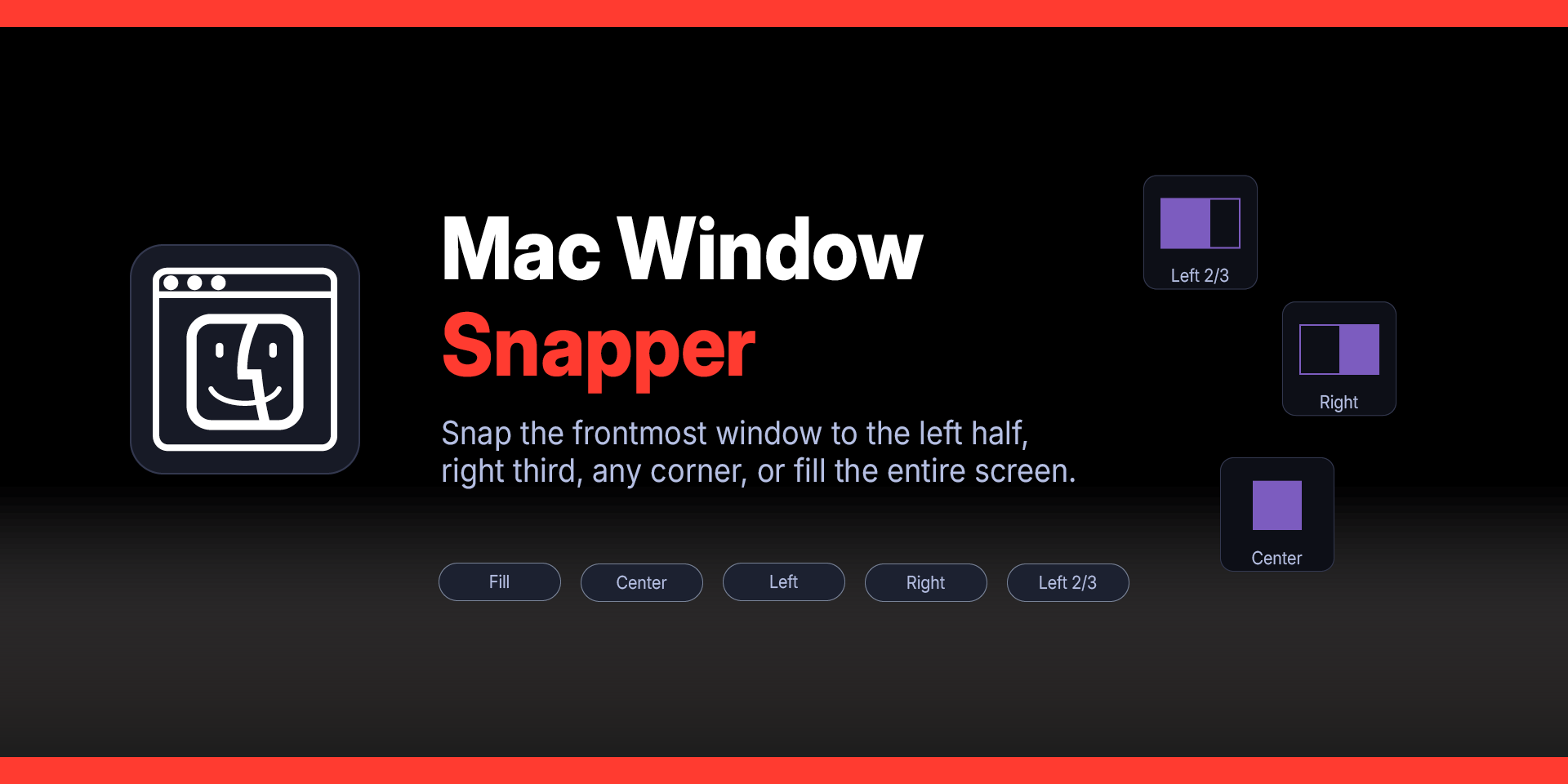
Snap and tile macOS windows from your Elgato Stream Deck with a single key press. Position any window to halves, thirds, quarters, or arrange multiple windows side by side — instantly, on any app.
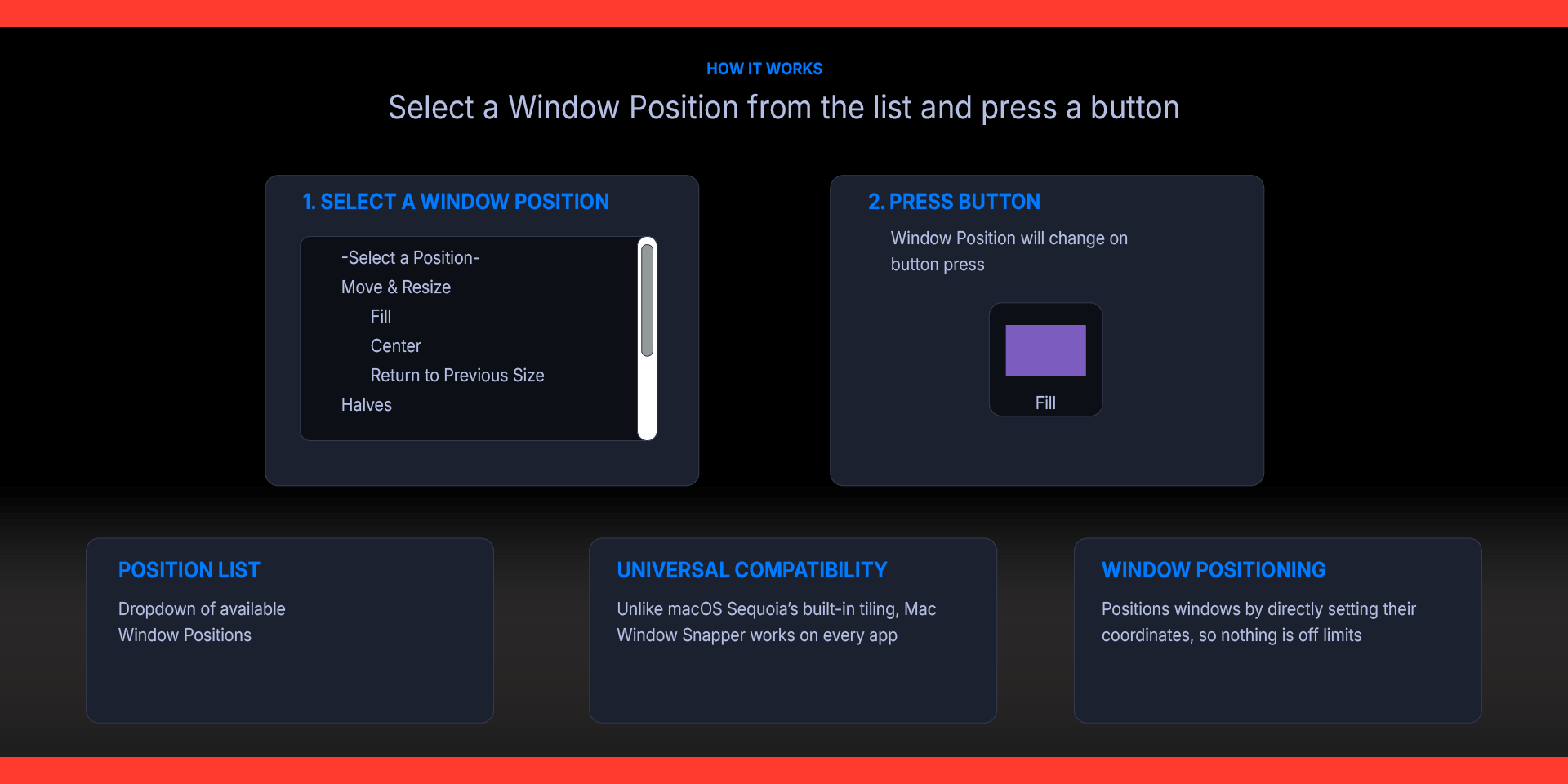
Universal compatibility — works on all macOS applications including Adobe Illustrator, Photoshop, InDesign, and Electron-based apps. Not limited to apps with Apple's Window > Move & Resize menu.
Dynamic key icons — each Stream Deck key displays a visual diagram of the snap layout. The icon updates automatically when you change the position in settings.
Halves — snap to the Left, Right, Top, or Bottom half of the screen.
Thirds — snap to Left 1/3, Right 1/3, Left 2/3, Right 2/3, or Center 1/3. Ideal for ultrawide displays where you want a large workspace alongside a narrower reference panel.
Quarters — snap to Top Left, Top Right, Bottom Left, or Bottom Right quarter.
Fill & Center — fill the entire usable desktop, or center the window at a comfortable reading size.
Arrange — position two windows from the frontmost app at once: Left & Right, Right & Left, Top & Bottom, Bottom & Top, or all four Quarters.
Return to Previous Size — restores the window to its original position and size from before the last snap. The plugin remembers each app's previous frame automatically.
Window controls — Zoom, Minimize, and Close the frontmost window.
Smart screen detection — automatically accounts for the menu bar and Dock, regardless of their position or size. Works correctly on MacBooks with the notch, ultrawide monitors, and multi-display setups.
Requirements
macOS 15 (Sequoia) or later
Elgato Stream Deck software 6.9 or later
Accessibility Permissions
Step 1 — Install the Plugin
Install Mac Window Snapper from the Elgato Marketplace, or double-click the `.streamDeckPlugin` file to install manually. Stream Deck will open automatically, install the plugin, and confirm when it is ready. The plugin will appear under the Mac Window Snapper category in the Actions panel.
If Stream Deck is not already running, double-clicking the file will launch it and complete the installation.
Step 2 — Grant Accessibility Permissions
The first time you press a Snap Window key, macOS may prompt you to grant Accessibility permissions. If the snap doesn't work on the first press:
Open System Settings > Privacy & Security > Accessibility
Find Elgato Stream Deck in the list and make sure it is enabled
If it was already enabled, try toggling it off and on again, then restart the Stream Deck app
Step 3 — Configure
In the Stream Deck app, find Mac Window Snapper in the actions list on the right side. Drag the Mac Window Snapper action onto any key on your Stream Deck.
Click the key you just added to open its settings. Select a snap position from the Position dropdown. The available positions are organized into groups:
Move & Resize — Fill, Center, Return to Previous Size
Halves — Left, Right, Top, Bottom
Thirds — Left 1/3, Right 1/3, Left 2/3, Right 2/3, Center 1/3
Quarters — Top Left, Top Right, Bottom Left, Bottom Right
Arrange — Left & Right, Right & Left, Top & Bottom, Bottom & Top, Quarters
Window — Zoom, Minimize, Close
How It Works
Mac Window Snapper positions windows by directly setting their coordinates and dimensions through macOS Accessibility (System Events). When you press a key:
The plugin reads the usable screen area from macOS, automatically excluding the menu bar and Dock regardless of their position or size.
It calculates the target position and size based on your selected layout.
It sets the frontmost window's position and size via System Events.
This direct approach works on any application — it doesn't depend on the app having specific menu items or supporting Apple's tiling features. Adobe apps, Electron apps, Java apps, and any other macOS application with a standard window can be snapped.
What’s Included
Mac Window Snapper Plugin (com.deckly.mac-window-snapper.streamDeckPlugin)
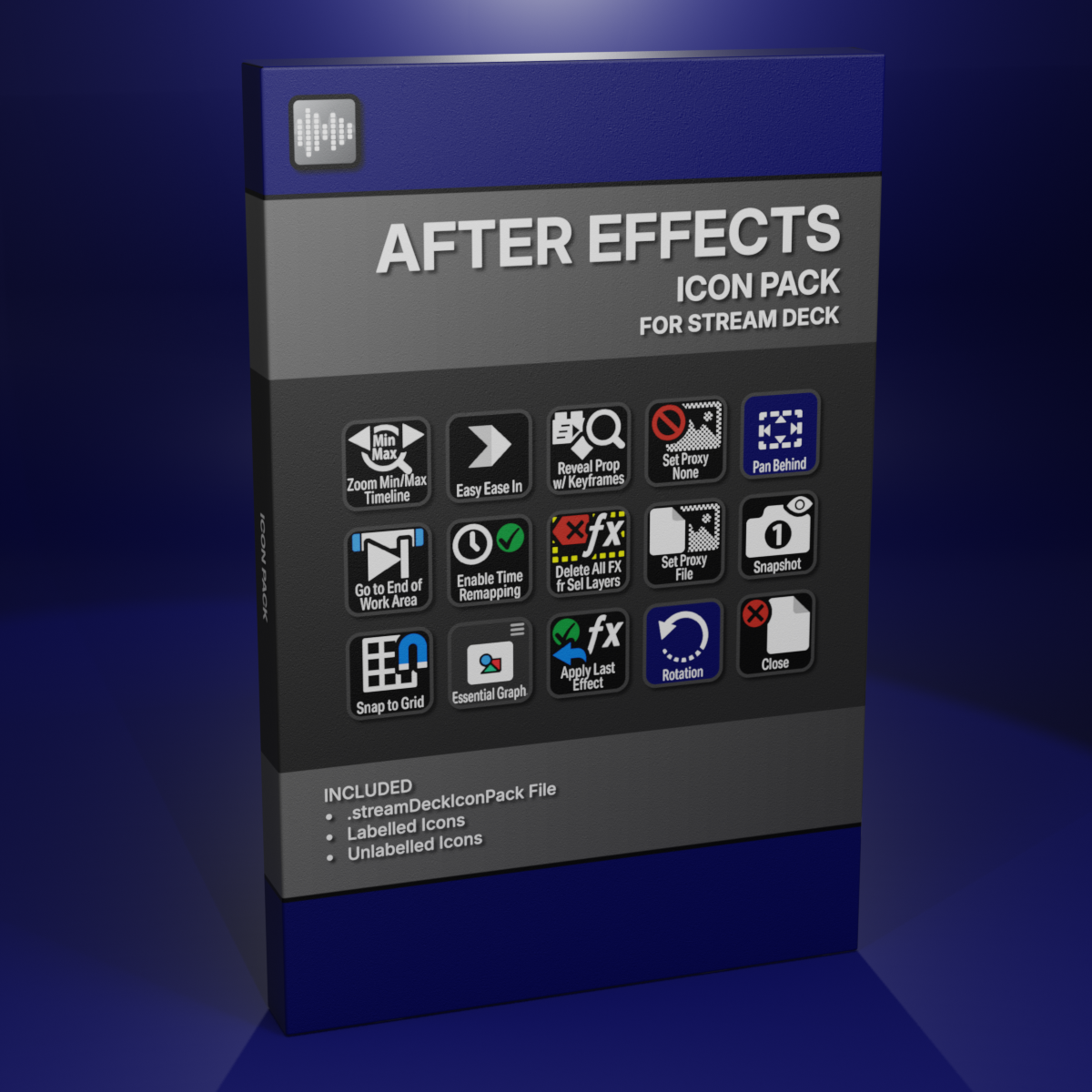
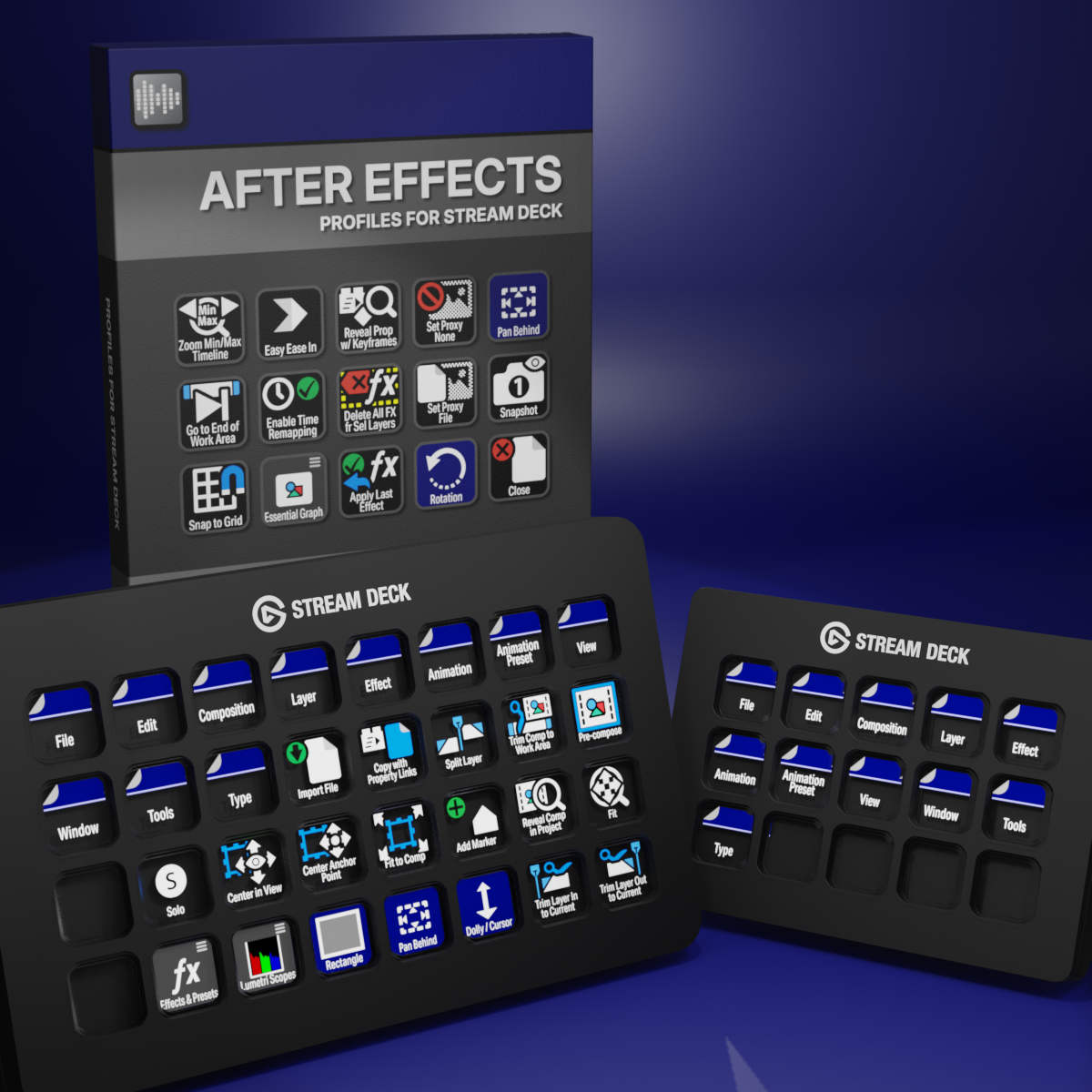
Custom Icons for Adobe After Effects. A sampler pack of both labelled and unlabelled icons for Stream Deck XL and Stream Deck Regular.