Installation
Overview
Run any macOS Shortcut from your Elgato Stream Deck with a single press.
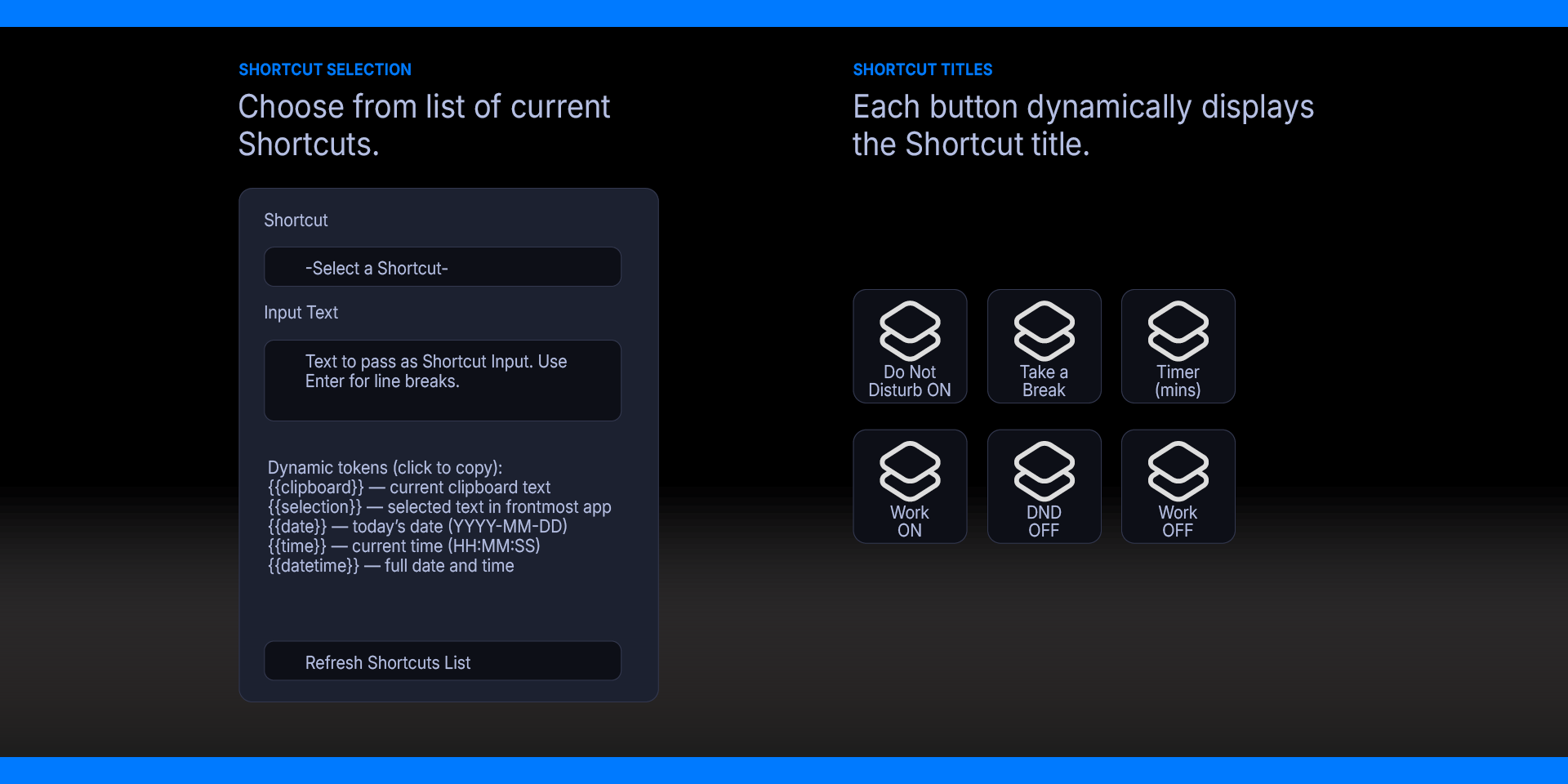
Live dropdown of all your installed Shortcuts — no typing names manually
Optional text input — pass text to a Shortcut as input
Visual feedback — "Running…" while executing, checkmark on success, alert on failure
Requirements
macOS 12 (Monterey) or later
Elgato Stream Deck software version 6.9 or later
Step 1 — Install the Plugin
Install Mac Shortcuts Runner from the Elgato Marketplace, or double-click the `.streamDeckPlugin` file to install manually. Stream Deck will open automatically, install the plugin, and confirm when it is ready. The plugin will appear under the Mac Shortcuts Runner category in the Actions panel.
If Stream Deck is not already running, double-clicking the file will launch it and complete the installation.
Step 2 — Configure
Drag Run Shortcut onto a Stream Deck key
Select a Shortcut from the dropdown
Optionally enter input text
Check "Show output on key" if desired
How It Works
The plugin uses Apple's `shortcuts` command-line tool:
‘shortcuts list’ — Discovers all installed Shortcuts
‘shortcuts run “Name”’ — Runs a Shortcut
‘shortcuts run “Name” -I -’ — Runs with stdin Input
What’s Included
Mac Shortcuts Runner Plugin (com.deckly.mac-shortcuts-runner.streamDeckPlugin)
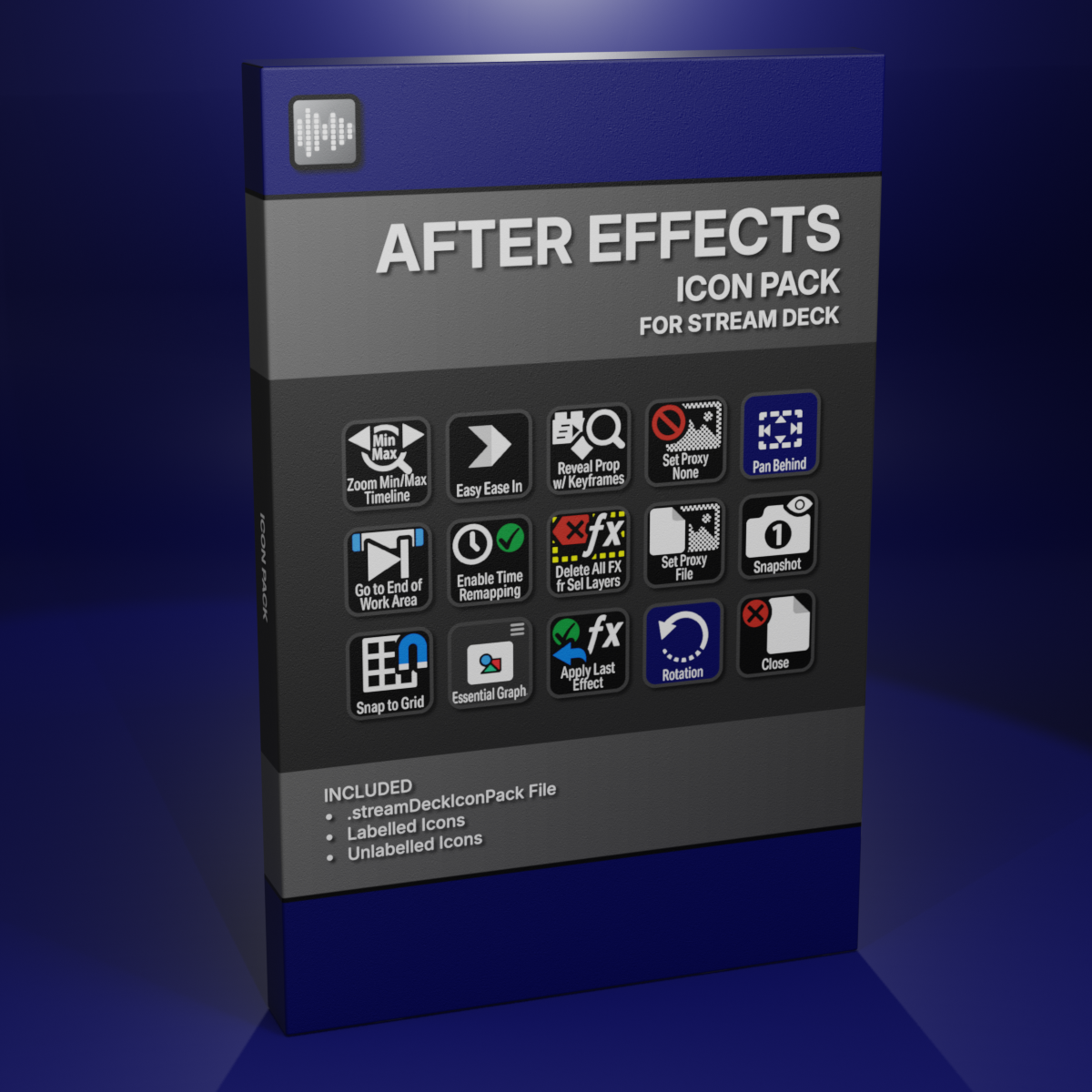
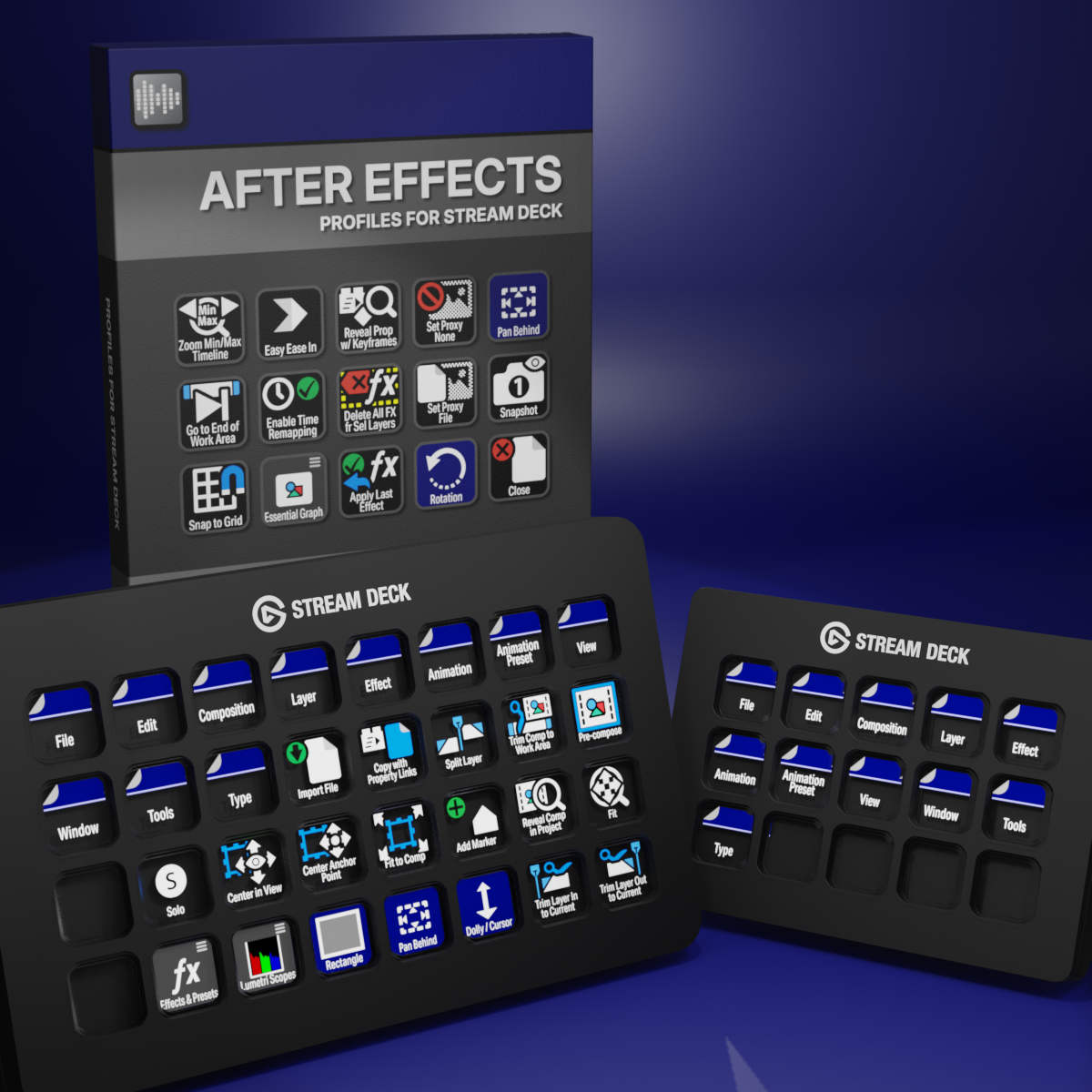
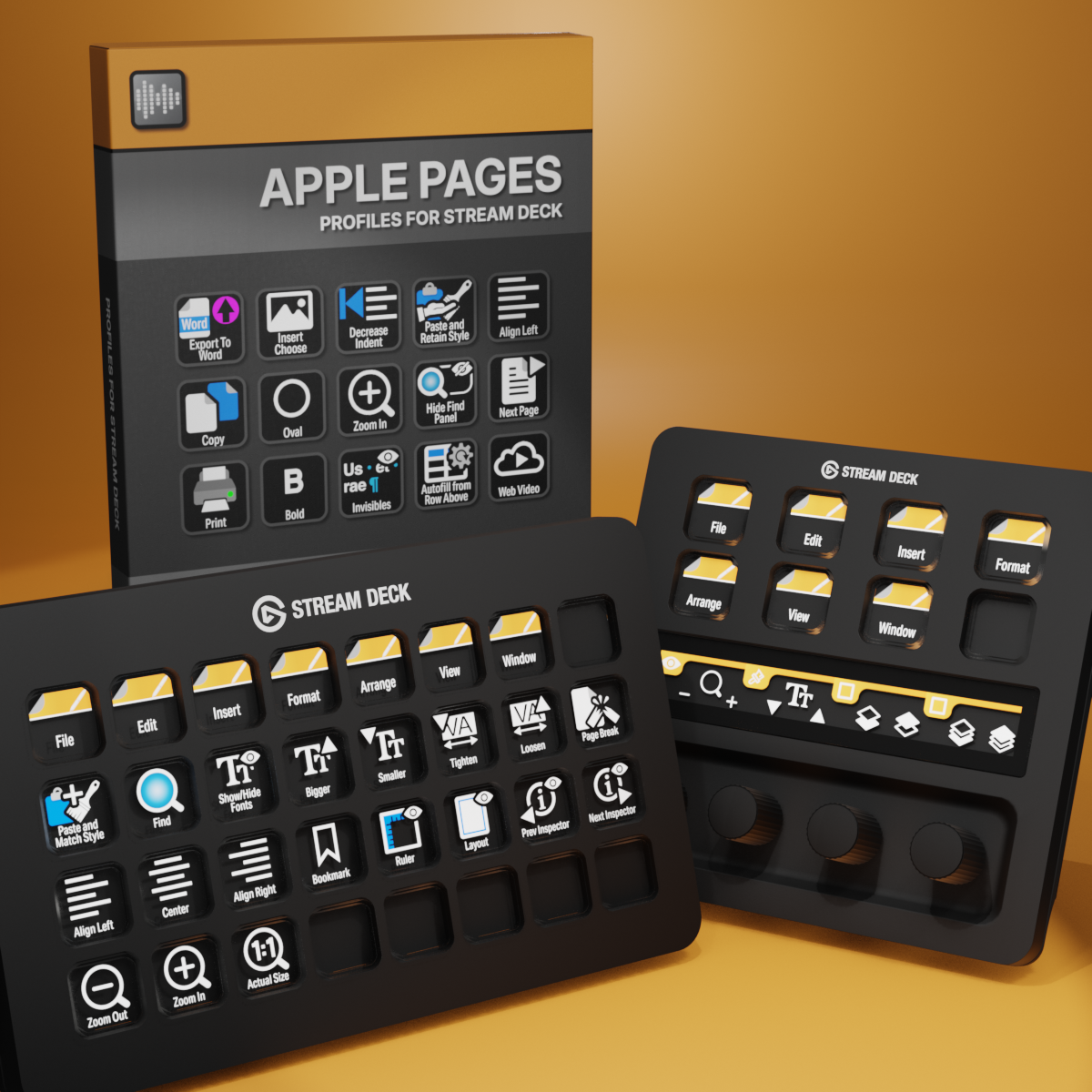
Custom Icons for Adobe After Effects. A sampler pack of both labelled and unlabelled icons for Stream Deck XL and Stream Deck Regular.