Installation
Overview
Run AppleScript, JavaScript for Automation (JXA), Bash, and Zsh scripts directly from your Elgato Stream Deck.
Mac Script Runner gives you one-press access to the full power of macOS scripting and the command line. Paste a script into the Property Inspector or point to a file on disk — press the key and it runs. Simple as that.
Run AppleScript, JavaScript for Automation (JXA), Bash, or Zsh with a single key press
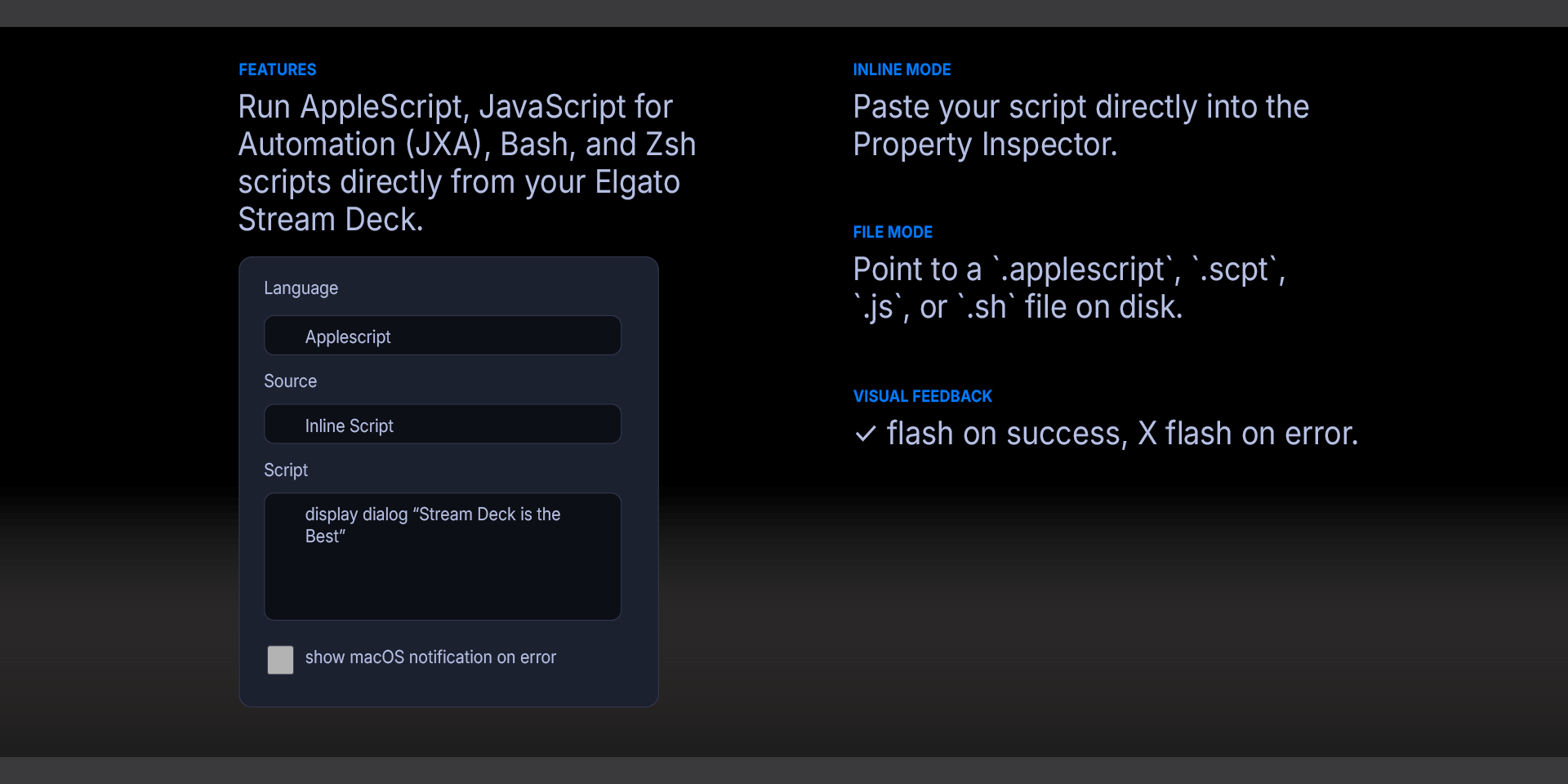
Inline mode: paste your script directly into the Property Inspector
File mode: point to a `.applescript`, `.scpt`, `.js`, or `.sh` file on disk
Visual feedback: ✓ flash on success, ✕ flash on error
Optional macOS notification on error with the error message
Requirements
macOS 12 (Monterey) or later
Elgato Stream Deck software version 6.9 or later
Step 1 — Install the Plugin
Install Mac Script Runner from the Elgato Marketplace, or double-click the `.streamDeckPlugin` file to install manually. Stream Deck will open automatically, install the plugin, and confirm when it is ready. The plugin will appear under the Mac Shortcuts Runner category in the Actions panel.
If Stream Deck is not already running, double-clicking the file will launch it and complete the installation.
Step 2 — Configure
Drag Mac Script Runner onto a Stream Deck key
Language: Choose between AppleScript, JavaScript for Automation (JXA), Bash, or Zsh
Source: Inline Script (paste directly) or Script File (path on disk)
Script: Your script text (inline mode) or the full file path (file mode)
Show macOS notification on error: Toggle error notifications on or off
Notes on Notifications
On macOS Sequoia and later, `display notification` from `osascript` may be silently blocked depending on your notification and Focus settings. If notifications don't appear:
Check System Settings → Notifications for Script Editor or the Stream Deck app
If using Focus Mode, add the relevant app to the allowed list
If using an external display or clamshell mode, enable "Allow notifications when mirroring or sharing the display" in Notification settings
`display dialog` always works regardless of notification settings, so it's a reliable alternative for quick feedback.
What’s Included
Mac Script Runner Plugin (com.deckly.mac-script-runner.streamDeckPlugin)
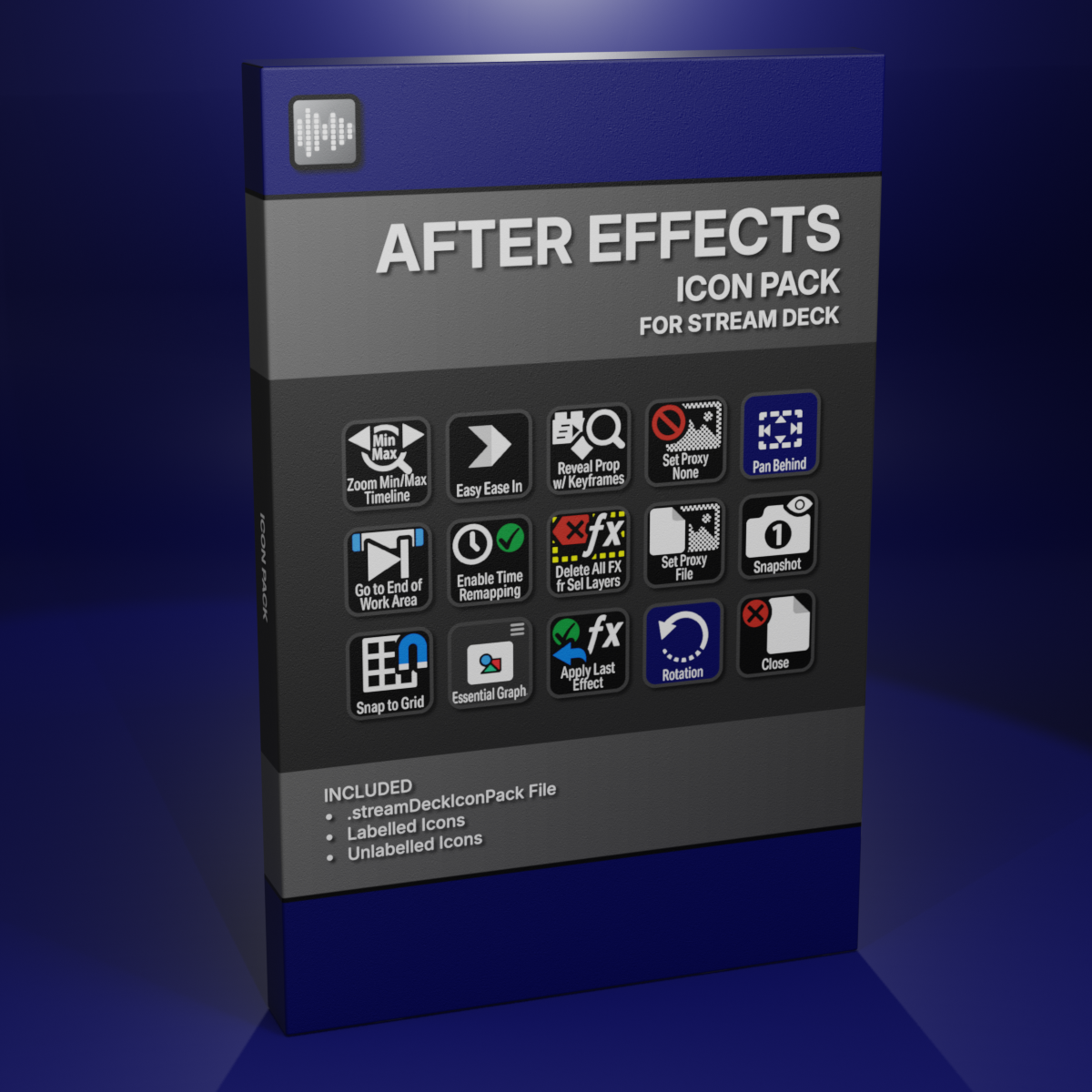
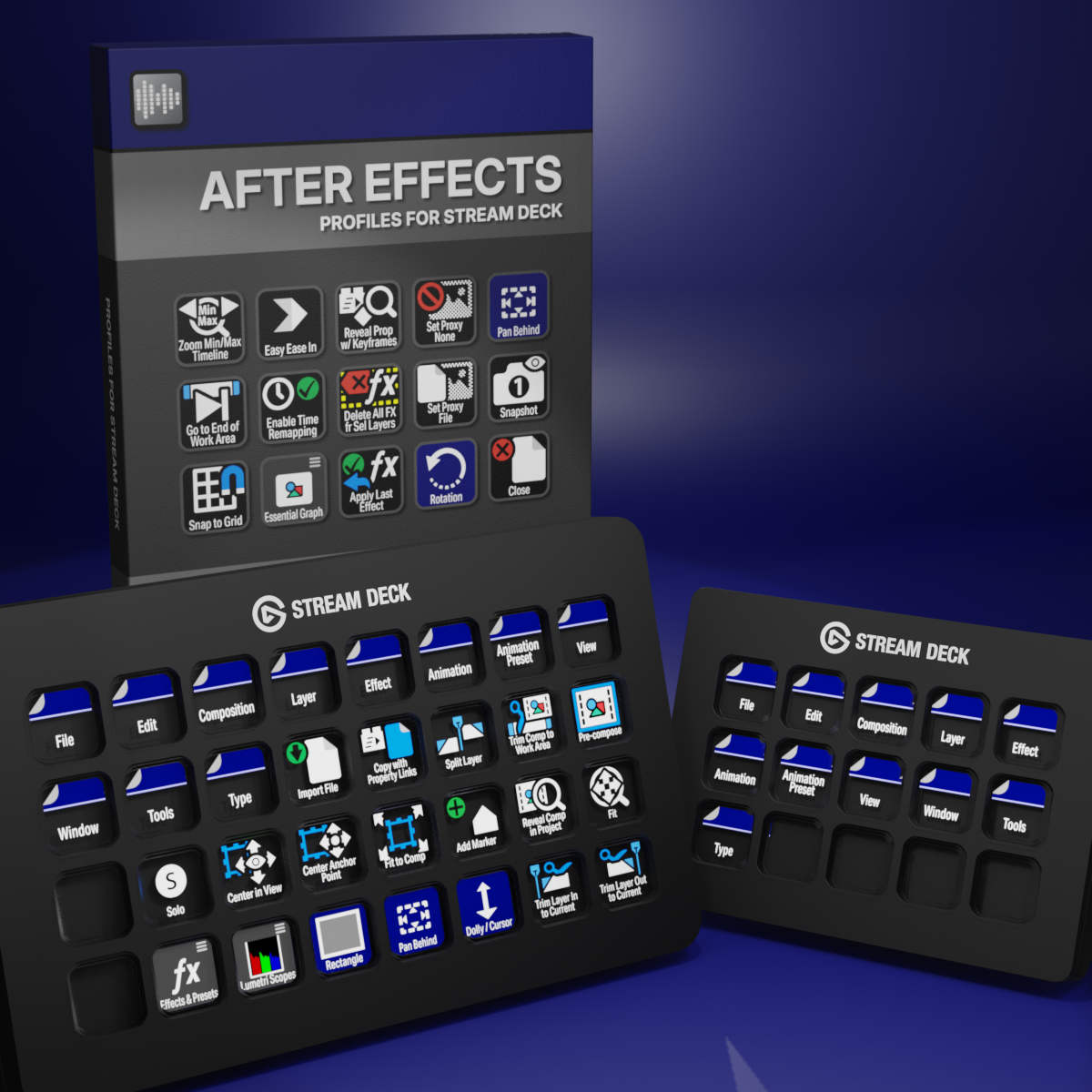
Custom Icons for Adobe After Effects. A sampler pack of both labelled and unlabelled icons for Stream Deck XL and Stream Deck Regular.