Installation
Overview
Mac Menu Trigger lets you assign any macOS application menu item to a Stream Deck button. If a command exists in the menu bar of any Mac app, you can trigger it with a single button press — even if that app has no keyboard shortcut for it.
Common uses include:
Triggering menu commands in apps that don’t support custom keyboard shortcuts (such as Apple Motion or Final Cut Pro)
Creating one-press buttons for deeply nested menu items
Building app-specific Stream Deck profiles for creative and productivity workflows
Executing menu commands in whichever app you are currently working in, without switching focus
Requirements
macOS 12 (Monterey) or later
Elgato Stream Deck software version 6.9 or later
Accessibility permission granted to Stream Deck
Step 1 — Install the Plugin
Double-click the file:
com.deckly.macmenu.streamDeckPlugin
Stream Deck will open automatically, install the plugin, and confirm when it is ready. The plugin will appear under the Mac Utilities category in the Actions panel.
If Stream Deck is not already running, double-clicking the file will launch it and complete the installation.
Step 2 — Grant Accessibility Permission
Mac Menu Trigger uses macOS UI scripting to click menu items on your behalf. Stream Deck must be granted Accessibility access for this to work.
Open System Settings
Go to Privacy & Security → Accessibility
Enable Stream Deck in the list
If Stream Deck does not appear in the list, try pressing a configured button first — macOS will prompt you automatically.
Without this permission, buttons will flash an alert icon but no menu action will occur.
Adding a Button
Open Stream Deck and navigate to the profile you want to add the button to.
Find Menu Trigger under Mac Utilities in the Actions panel on the right, and drag it onto any button.
With the button selected, the Property Inspector panel will appear. Configure the button here.
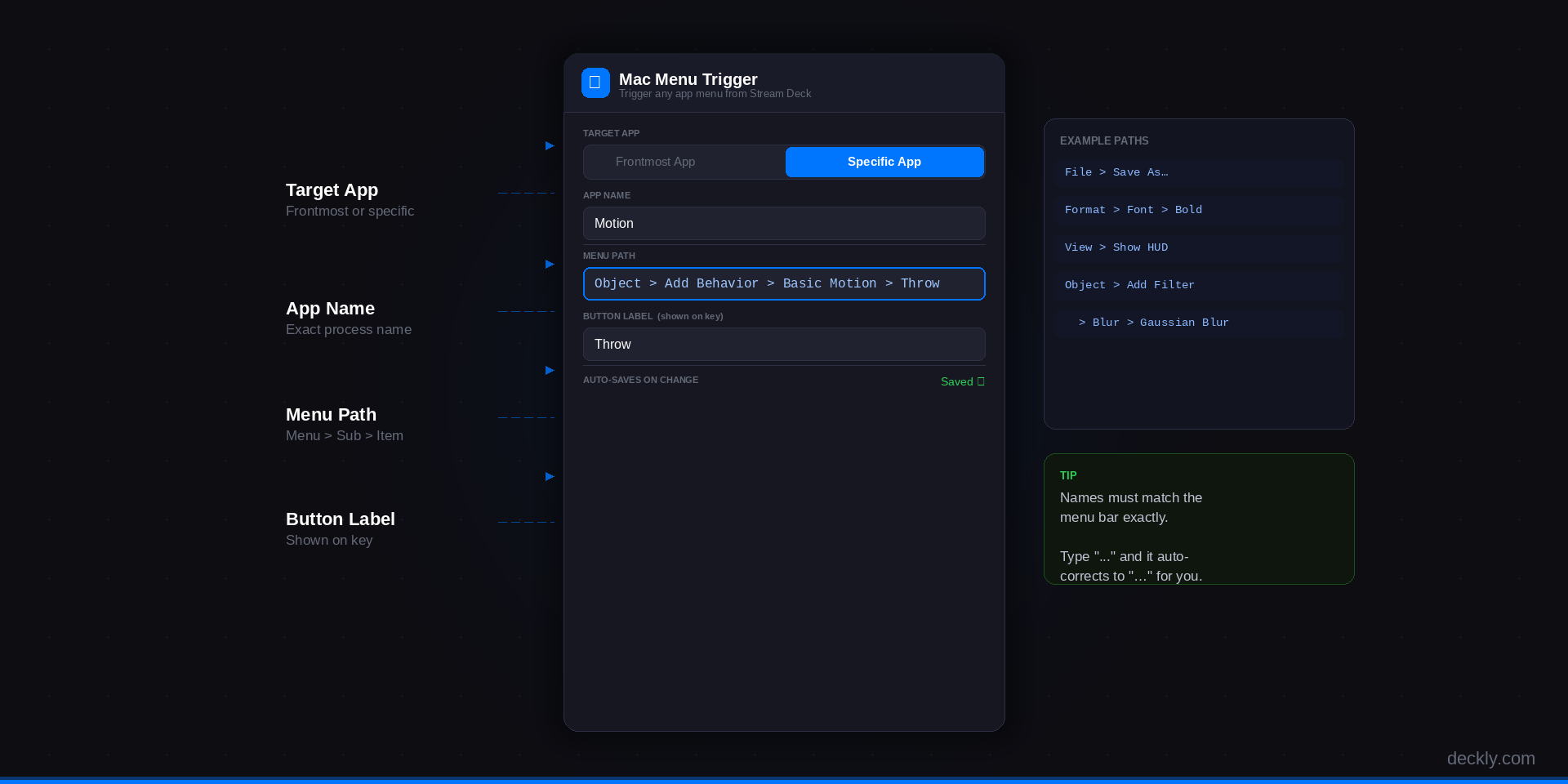
Target App
Choose how the plugin determines which app to send the menu command to.
Frontmost App
Sends the command to whichever application is currently active when the button is pressed. Stream Deck itself is automatically excluded. Use this for commands that work the same way across multiple apps, such as Format > Font > Bold.
Specific App
Sends the command to one named application regardless of what is in front. If the app is not running, the button does nothing silently. If the app is running but in the background, it will be brought to the front before the command is triggered.
Enter the app name exactly as it appears in the Dock or in Activity Monitor — for example, Motion, Final Cut Pro, or Logic Pro.
Menu Path Syntax
A menu path describes the route through the menu bar to reach a specific item, with each level separated by a greater-than symbol and a space on each side:
Menu > Submenu > Item
The first segment is always the top-level menu bar name. The last segment is always the item to be clicked. Any segments in between are submenus to pass through.
Important Rules
Match names exactly
Menu item names must be typed exactly as they appear in the application’s menu bar, including capitalisation, spaces, and punctuation.
Use the ellipsis character, not three dots
Many menu items end with an ellipsis (…), which is a single character, not three separate periods. If you type three dots (...), Mac Menu Trigger will automatically correct them to the proper ellipsis character (…) before executing.
Spaces around the > separator are optional File>SaveAs… and File > Save As… are treated the same Spaces are recommended for readability.
Disabled menu items
If a menu item is greyed out (disabled) in the app, the button will attempt to click it anyway. The result depends on the application — most apps will simply ignore the click.
What’s Included
Menu Trigger Plugin (com.deckly.macmenu.sdPlugin)
Plugin Installation Guide
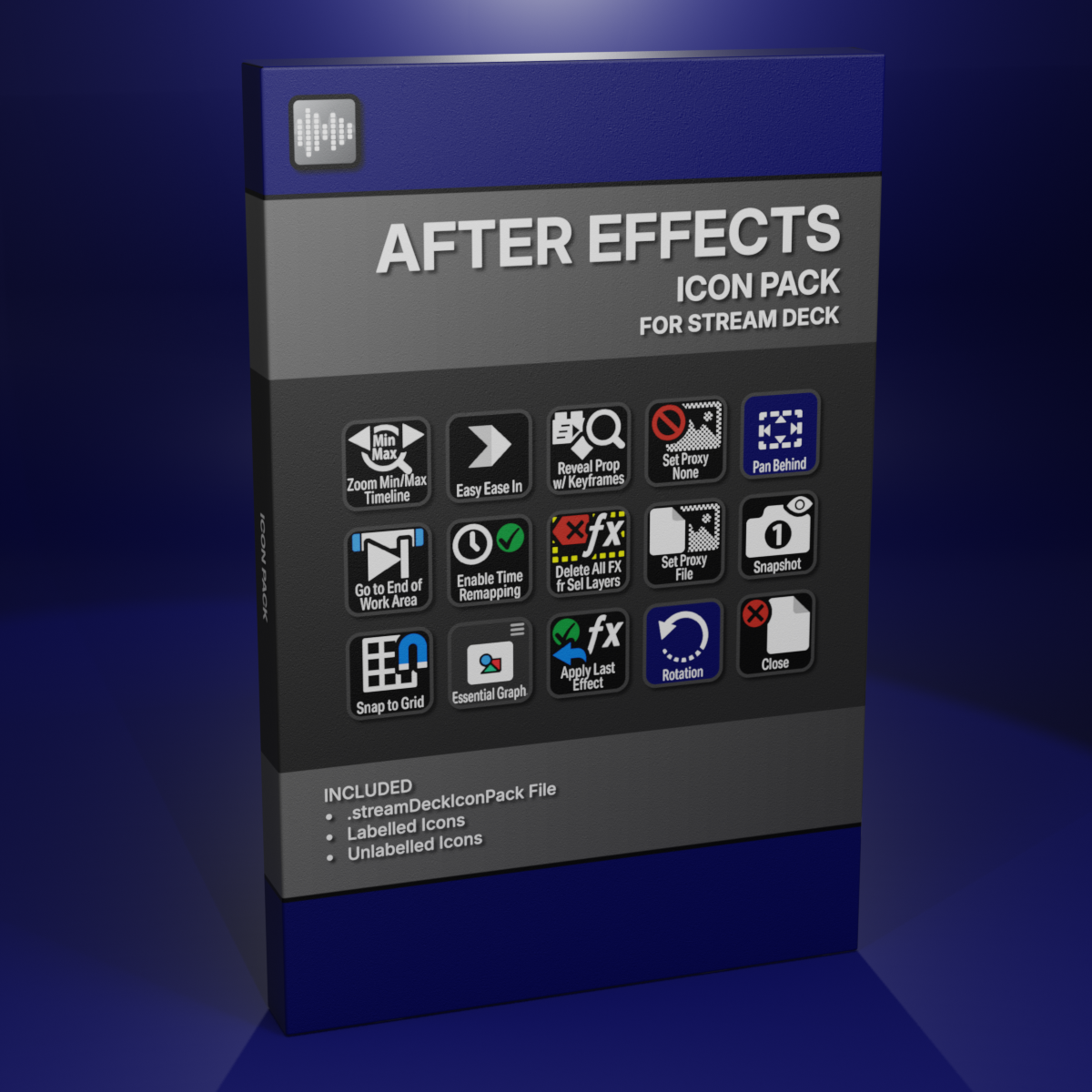
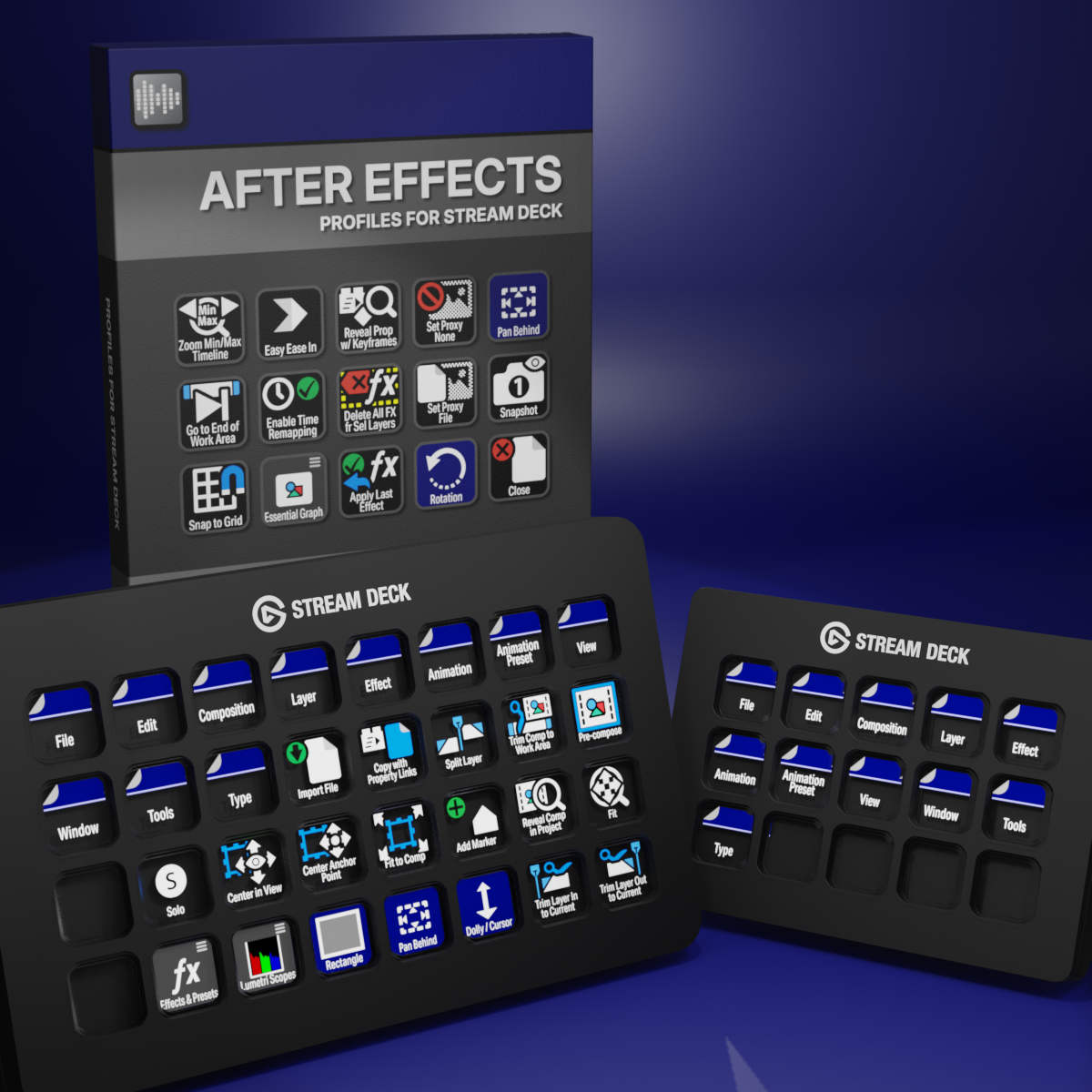
Custom Icons for Adobe After Effects. A sampler pack of both labelled and unlabelled icons for Stream Deck XL and Stream Deck Regular.