Installation
Overview
Apply, remove, and manage macOS Finder tags on your selected files directly from your Elgato Stream Deck. One press to tag, one press to untag — with color-coded buttons that match your tags.
Tag your files without touching the keyboard. Mac Finder Tags brings macOS Finder tagging to your Stream Deck with a single key press.
Select files in Finder, press a button, and the tag is applied instantly. Press again to remove it. Each button displays the tag's color so you always know which tag you're applying at a glance.
Supports all seven built-in macOS tag colors — Red, Orange, Yellow, Green, Blue, Purple, and Gray — plus any custom tags you've created in Finder. A dedicated "Clear All Tags" option lets you strip all tags from selected files in one press.
he Property Inspector dropdown automatically pulls your available tags from macOS, including custom-named tags. Toggle behavior means you never have to think about whether a tag is already applied — just press the button and the plugin handles the rest.
Perfect for photographers organizing shoots, designers managing project assets, writers sorting research, or anyone who uses Finder tags as part of their workflow.
Requirements
macOS 12 (Monterey) or later
Elgato Stream Deck software version 6.9 or later
Files must be selected in Finder (the plugin reads Finder's current selection)
Step 1 — Install the Plugin
Install Mac Finder Tags from the Elgato Marketplace, or double-click the `.streamDeckPlugin` file to install manually. Stream Deck will open automatically, install the plugin, and confirm when it is ready. The plugin will appear under the Mac Finder Tags category in the Actions panel.
If Stream Deck is not already running, double-clicking the file will launch it and complete the installation.
Step 2 — Add a Tag Button
In the Stream Deck app, find Mac Finder Tags in the actions list on the right side. Drag the Mac Finder Tags action onto any key on your Stream Deck.
Step 3 — Choose a Tag
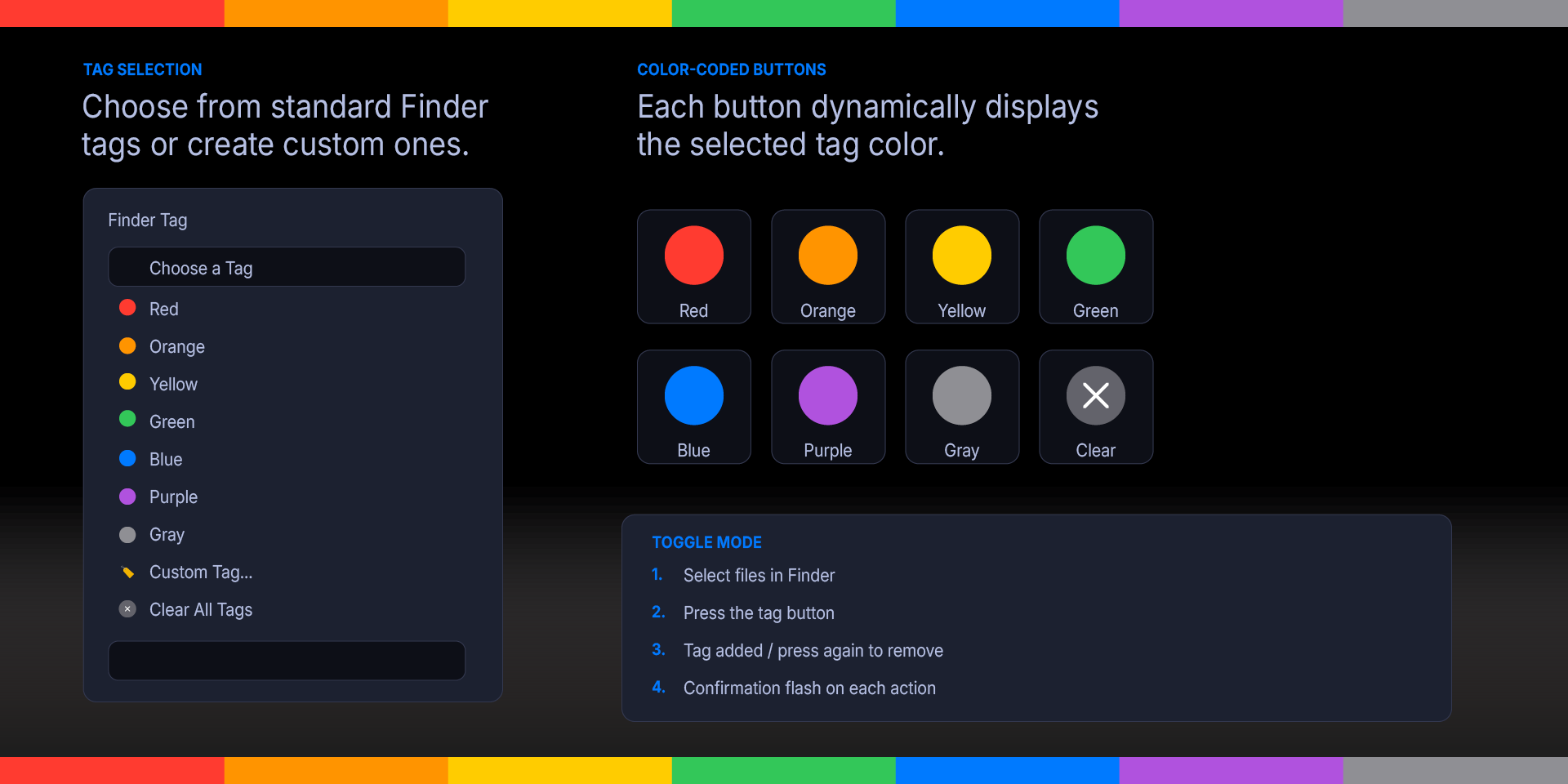
Click the key you just added to open its settings. Select a tag from the Tag dropdown. The dropdown shows all tags available on your Mac, organized into two groups:
Standard Colors — Red, Orange, Yellow, Green, Blue, Purple, Gray
Custom Tags — any tags you've created in Finder Settings > Tags
Clear All Tags — removes every tag from selected files
You can also type a custom tag name directly if it doesn't appear in the dropdown.
The key icon on your Stream Deck will update to show the tag's color.
Step 4 — Tag Your Files
Open Finder and select one or more files or folders.
Press the tag button on your Stream Deck.
The tag is applied to all selected items. A ✓ flashes on the button to confirm.
Press the same button again to remove the tag from the selected items.
What’s Included
Mac Finder Tags Plugin (com.deckly.findertags.streamDeckPlugin)


Custom Icons for Adobe After Effects. A sampler pack of both labelled and unlabelled icons for Stream Deck XL and Stream Deck Regular.