Installation
Overview
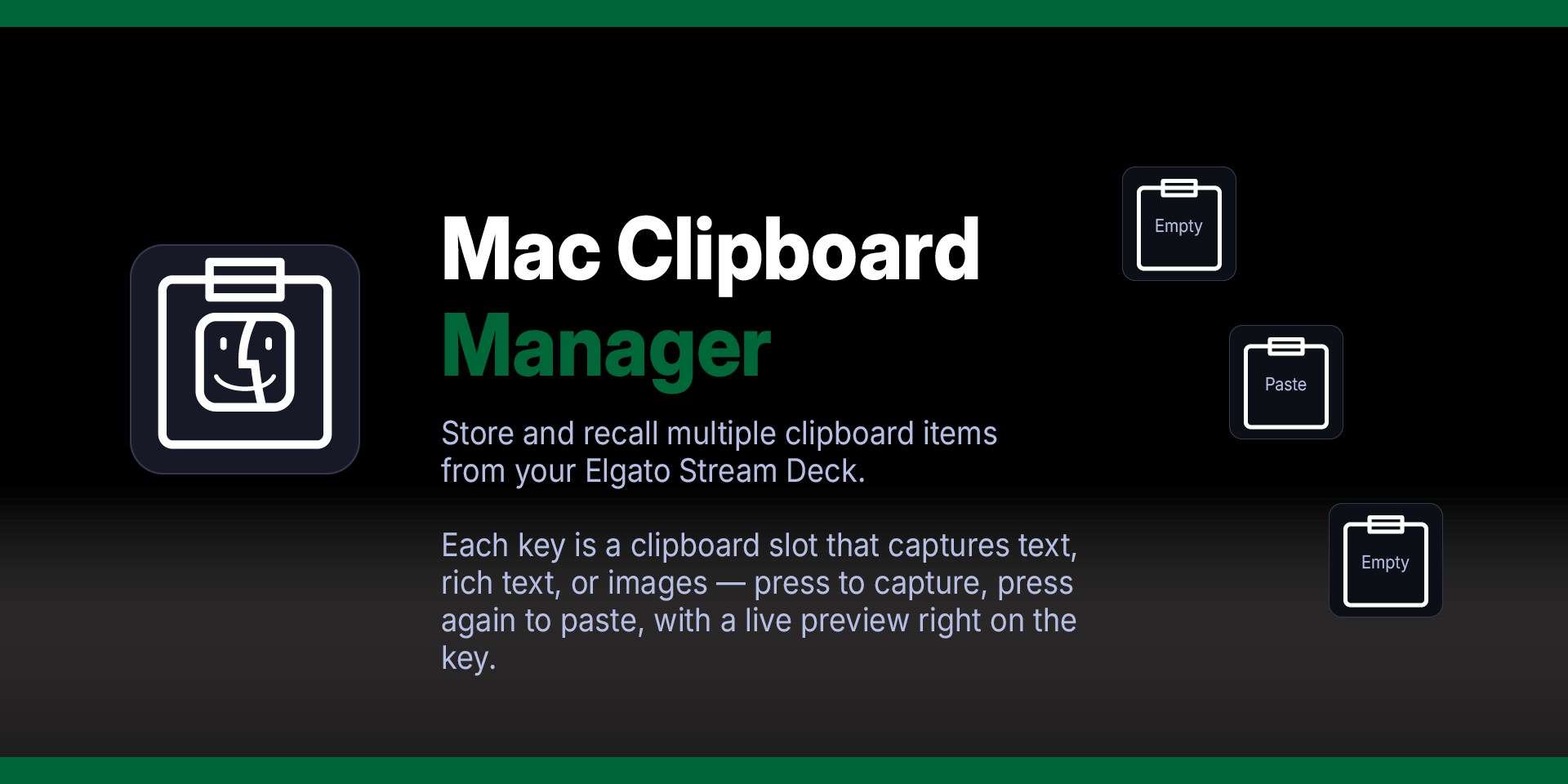
Store and recall multiple clipboard items from your Elgato Stream Deck. Each key is a clipboard slot that captures text, rich text, or images — press to capture, press again to paste, with a live preview right on the key.
Three content types — captures plain text, rich text (RTF), and images (PNG/TIFF) from any app.
Capture & paste — press an empty slot to capture the current clipboard; press a filled slot to paste its contents.
Auto type detection — the plugin checks the clipboard and captures the richest type available: image → rich text → plain text.
Live preview — each key displays a word-wrapped preview of stored text, or dimensions for images. Content type indicators (🖼 for images, 📝 for RTF) appear on the key.
Dynamic icons — the clipboard icon on each key changes to reflect the content type: text lines, formatted text with highlights, or a landscape image graphic.
Long press to clear — hold a filled slot for half a second to clear it.
Persistent storage — text is saved in settings; images and RTF are saved to temp files. All survive app restarts.
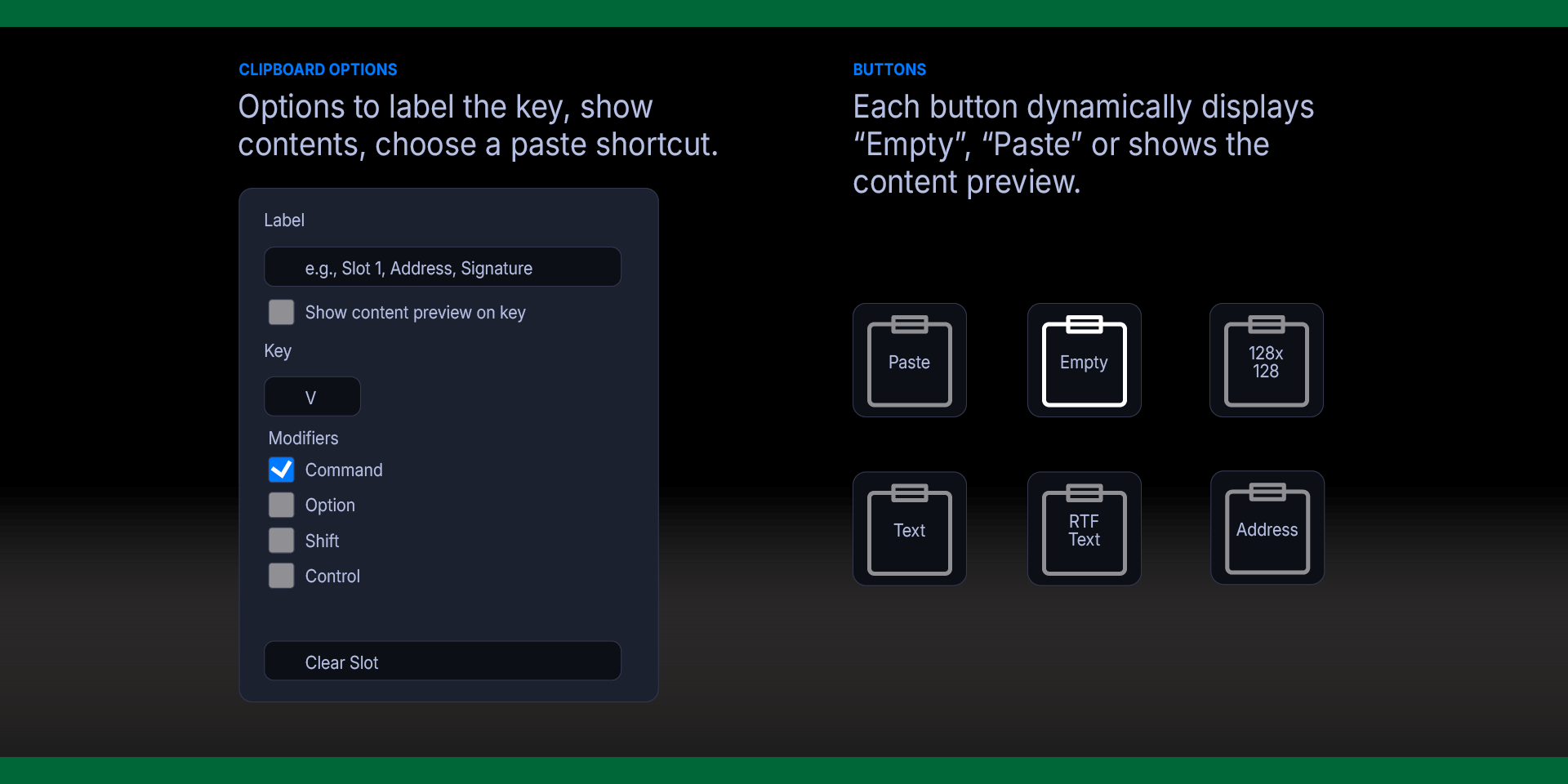
Custom labels — name your slots ("Logo", "Signature", "Address") for quick identification.
Unlimited slots — add as many keys as you need.
Requirements
macOS 12 (Monterey) or later
Elgato Stream Deck software 6.9 or later
Accessibility Permissions
Step 1 — Install the Plugin
Install Mac Clipboard Manager from the Elgato Marketplace, or double-click the `.streamDeckPlugin` file to install manually. Stream Deck will open automatically, install the plugin, and confirm when it is ready. The plugin will appear under the Mac Clipboard Manager category in the Actions panel.
If Stream Deck is not already running, double-clicking the file will launch it and complete the installation.
Step 2 — Add Clipboard Slots
In the Stream Deck app, find Mac Clipboard Manager in the actions list. Drag the action onto as many keys as you want.
Step 3 — Capture Content
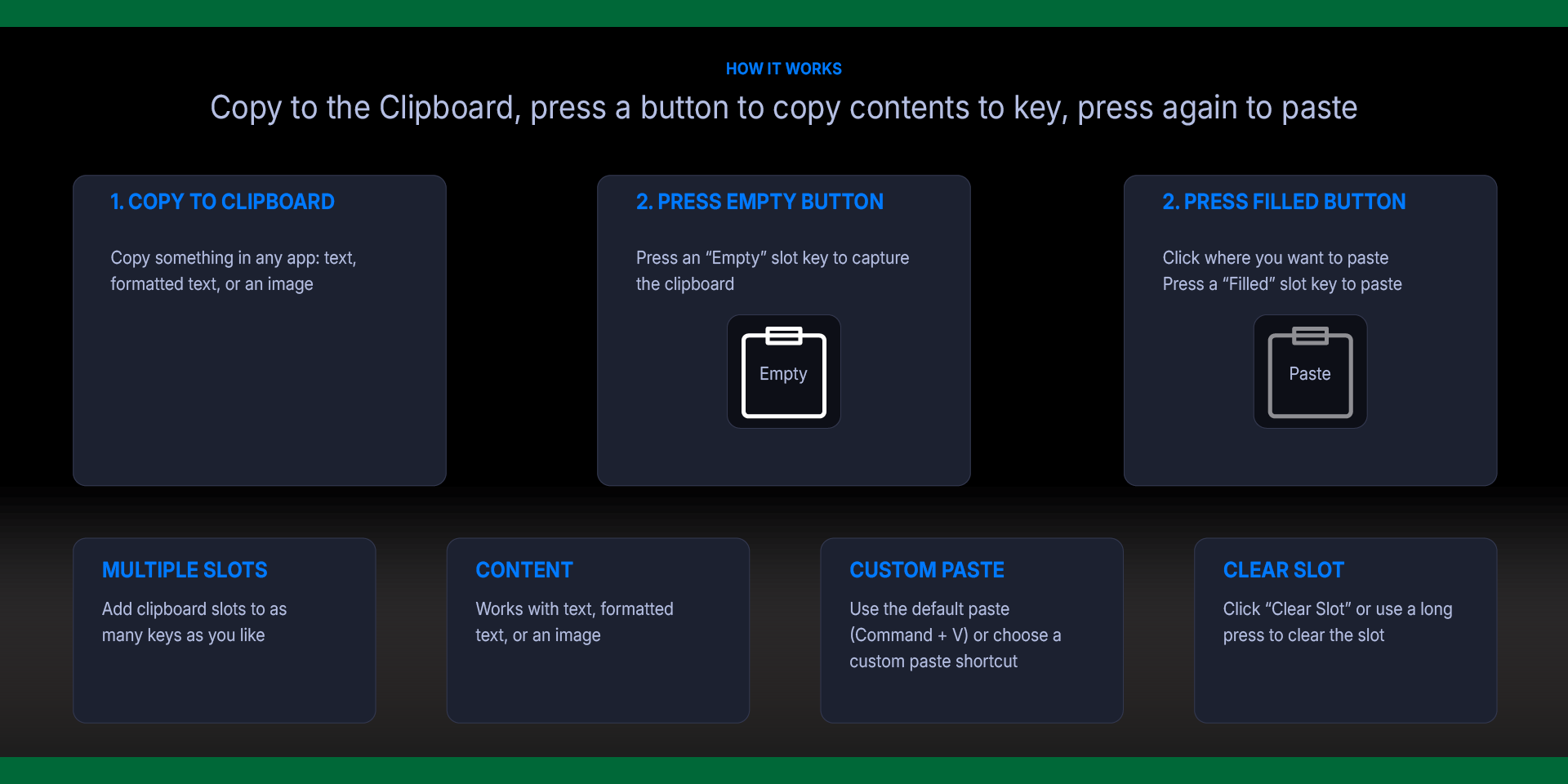
Copy something in any app (Cmd+C): text, formatted text, or an image
Press an empty slot key
The key captures the clipboard and shows a preview
A ✓ confirms the capture
Step 4 — Paste Content
Click where you want to paste
Press a filled slot key
The stored content is pasted at the cursor
A ✓ confirms the paste
Step 5 — Clear a Slot
Long press (hold 0.5s) to clear
Or click Clear Slot in the Property Inspector
How It Works
When you capture, the plugin checks the clipboard in this order:
Image — if TIFF/PNG image data is present, it captures the image
Rich text — if RTF data is present, it captures the formatted text
Plain text — if UTF-8 text is present, it captures the text
Empty — nothing to capture
Most apps put multiple types on the clipboard at once (e.g., copying from Pages puts both RTF and plain text). The plugin captures the richest type available.
How Images Work
When you copy an image in any app (Cmd+C on a selected graphic in Illustrator, a photo in Preview, or a screenshot), the clipboard contains TIFF image data. The plugin reads this via NSPasteboard, converts it to PNG, and saves it to a temp file. When you paste, the plugin writes the image back to the clipboard as an NSImage object and simulates the configured paste keystroke.
How Rich Text Works
When you copy formatted text from apps like Pages, Word, or Mail, the clipboard contains RTF data alongside plain text. The plugin saves the RTF data to a temp file and extracts a plain text preview for the key title. When you paste, both the RTF and a plain text fallback are placed on the clipboard, so the receiving app gets whichever format it supports.
Custom Paste Shortcut
Each slot has a configurable paste shortcut. By default it sends ⌘V (standard Paste), but you can change the key and modifiers to match any paste command your app supports.
To configure: open the slot's settings in the Property Inspector and adjust the Key and Modifiers under the Paste Shortcut section.
What’s Included
Mac Window Snapper Plugin (com.deckly.mac-window-snapper.streamDeckPlugin)
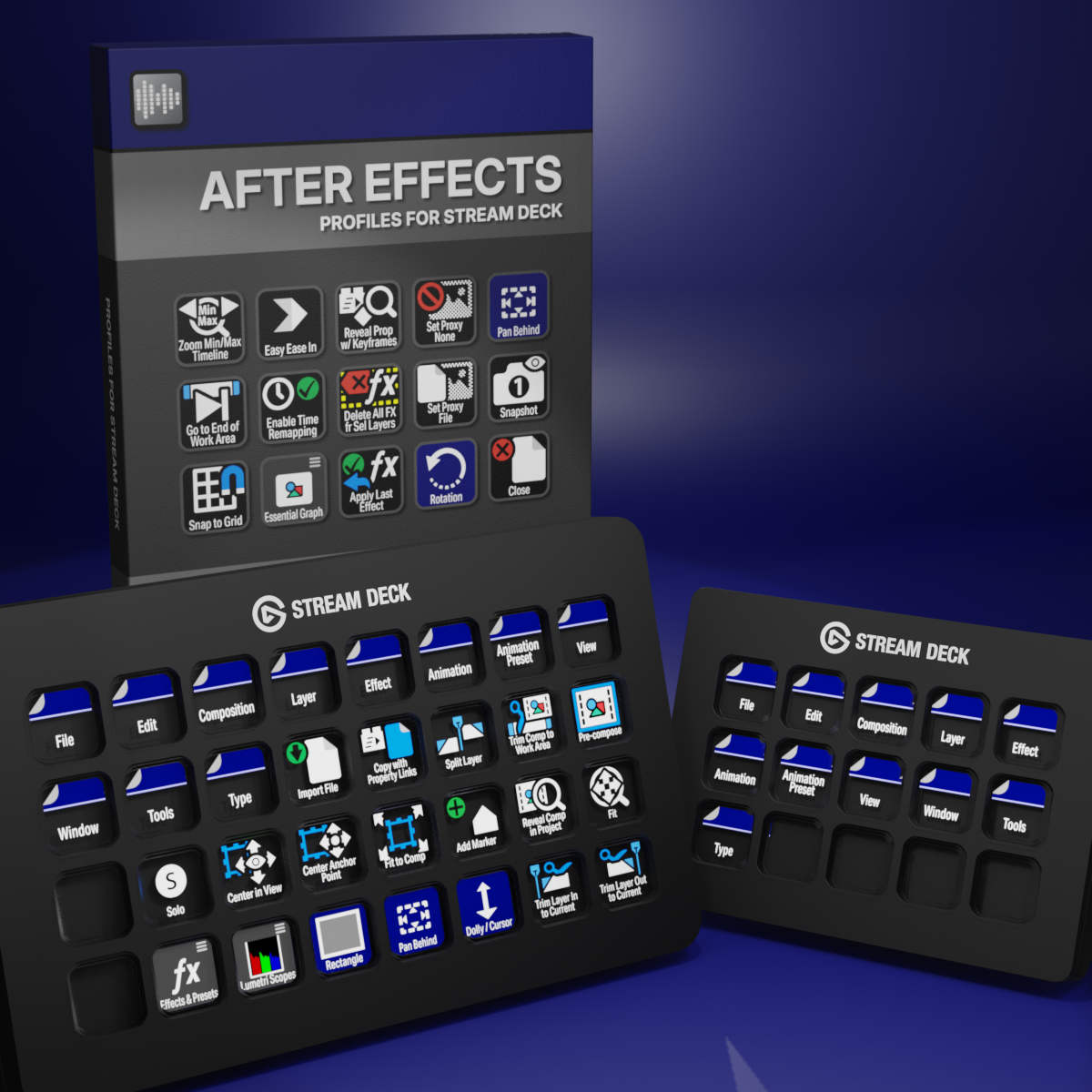
Custom Icons for Adobe After Effects. A sampler pack of both labelled and unlabelled icons for Stream Deck XL and Stream Deck Regular.