Installation
Overview
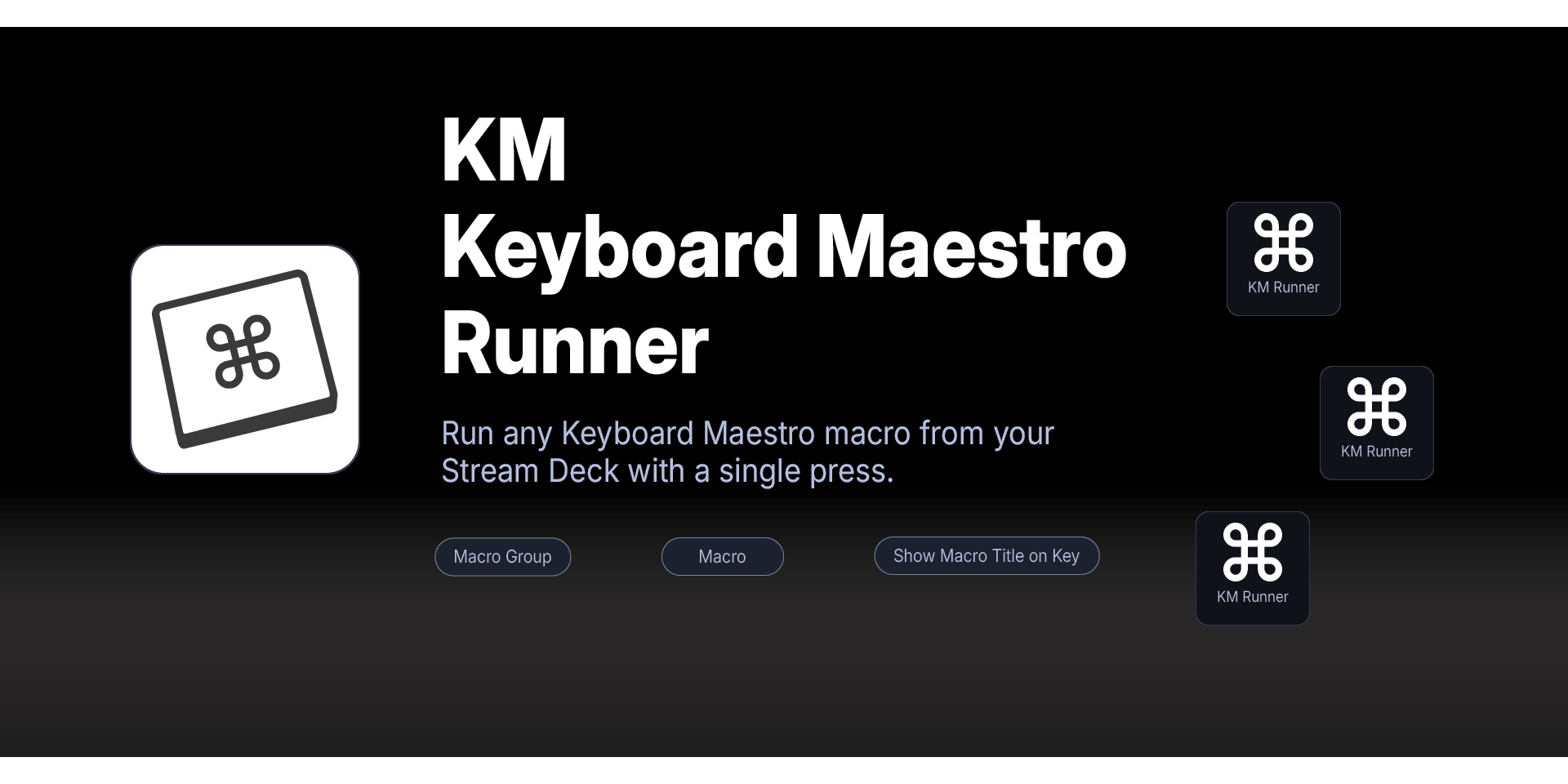
Run any Keyboard Maestro (https://www.keyboardmaestro.com) macro from your Stream Deck with a single press.
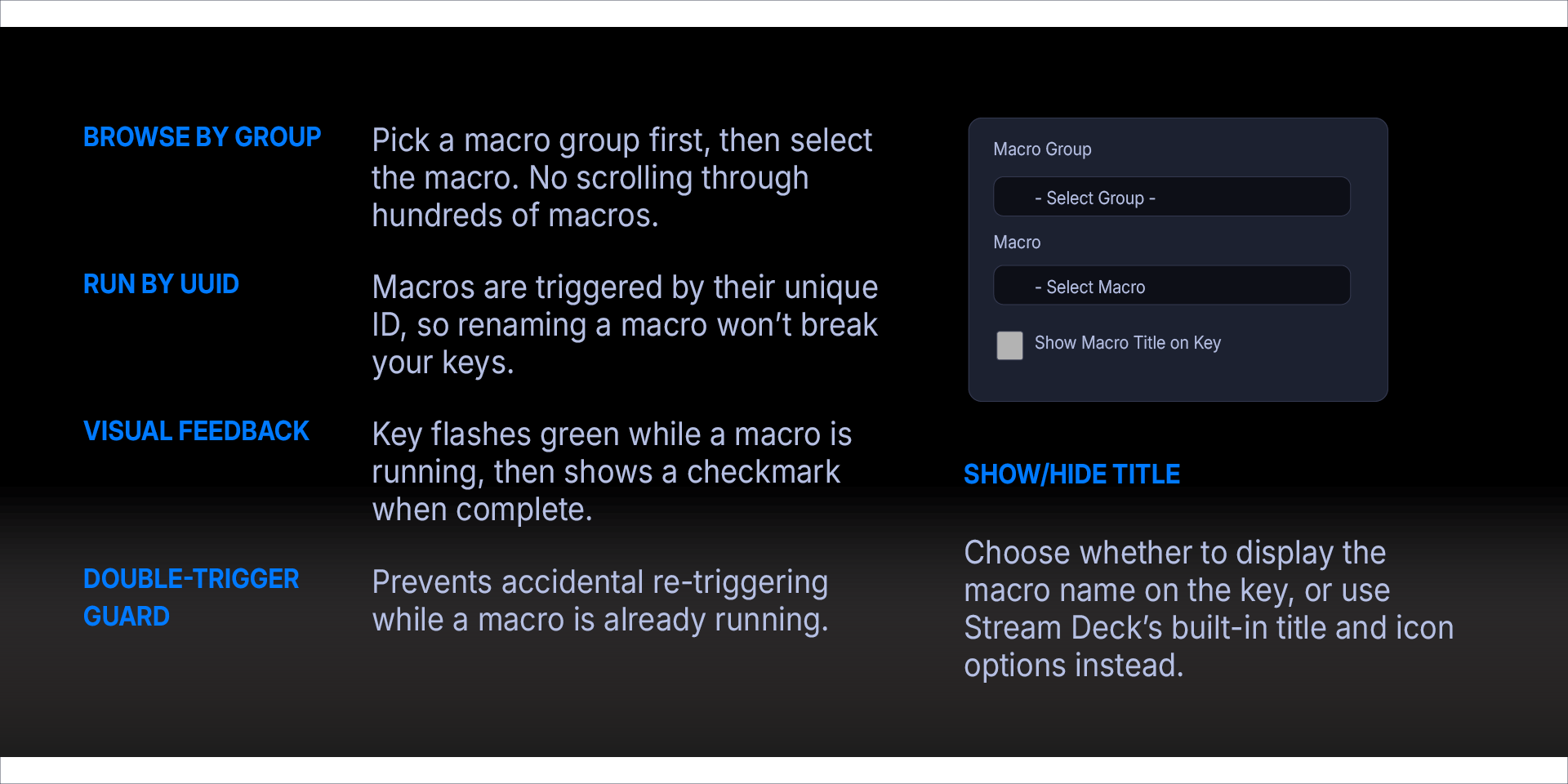
Browse by Group — Pick a macro group first, then select the macro. No scrolling through hundreds of macros.
Run by UUID — Macros are triggered by their unique ID, so renaming a macro won't break your keys.
Visual Feedback — Key flashes green while a macro is running, then shows a checkmark when complete.
Double-Trigger Guard — Prevents accidental re-triggering while a macro is already running.
Show/Hide Title — Choose whether to display the macro name on the key, or use Stream Deck's built-in title and icon options instead.
Requirements
macOS 12 (Monterey) or later
Elgato Stream Deck software version 6.9 or later
Keyboard Maestro installed and running
Step 1 — Install the Plugin
Install Mac Script Runner from the Elgato Marketplace, or double-click the `.streamDeckPlugin` file to install manually. Stream Deck will open automatically, install the plugin, and confirm when it is ready. The plugin will appear under the Mac Shortcuts Runner category in the Actions panel.
If Stream Deck is not already running, double-clicking the file will launch it and complete the installation.
Step 2 — Configure
Drag KM Runner onto a Stream Deck key
In the Property Inspector, select a Macro Group from the dropdown.
Select a Macro from the second dropdown.
Press the key to run the macro.
Options
Show macro title on key — When checked, the macro name is displayed below the icon on the key. When unchecked, only the icon is shown — use Stream Deck's built-in Title field or set a custom icon.
What’s Included
KM Runner Plugin (com.deckly.km-runner.streamDeckPlugin)
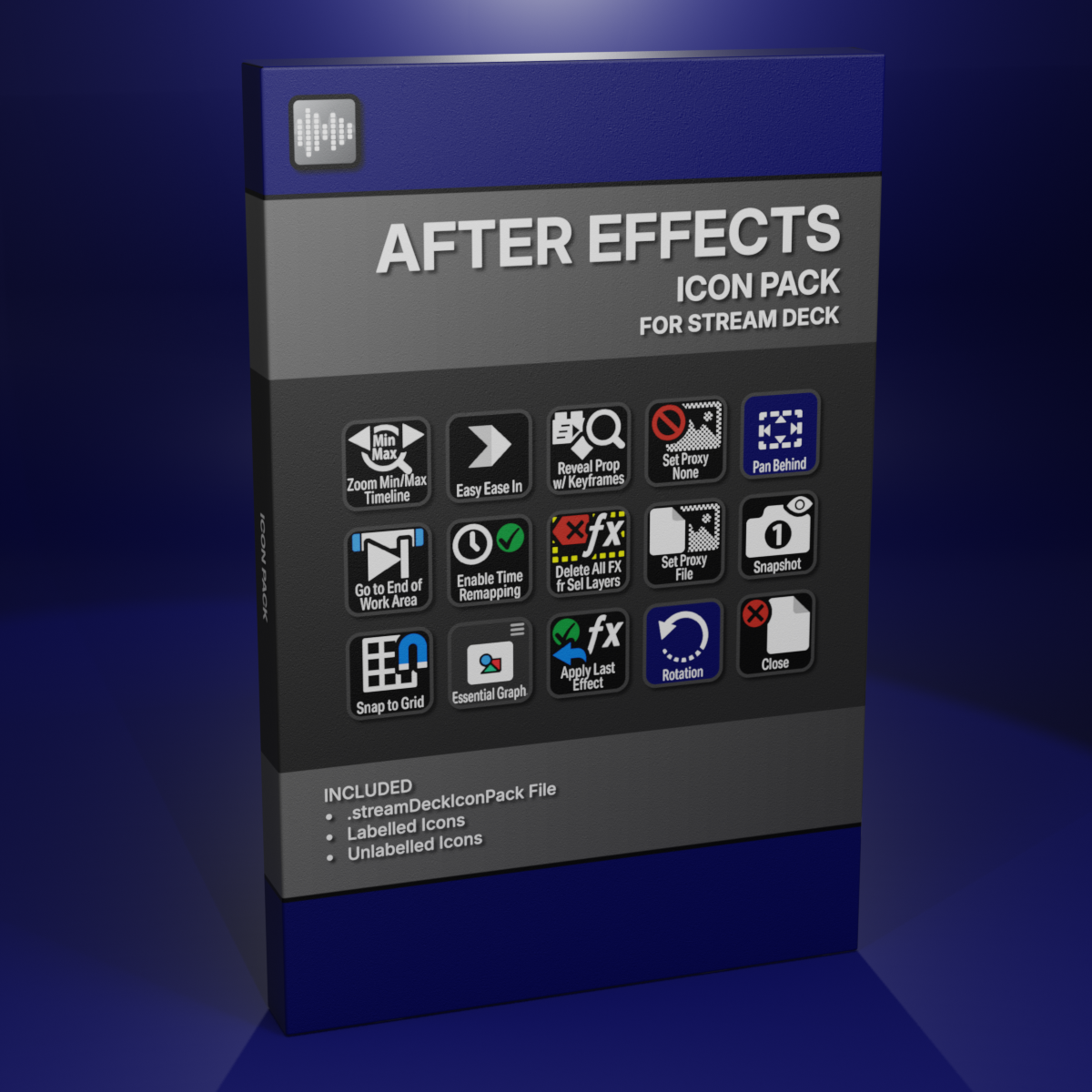
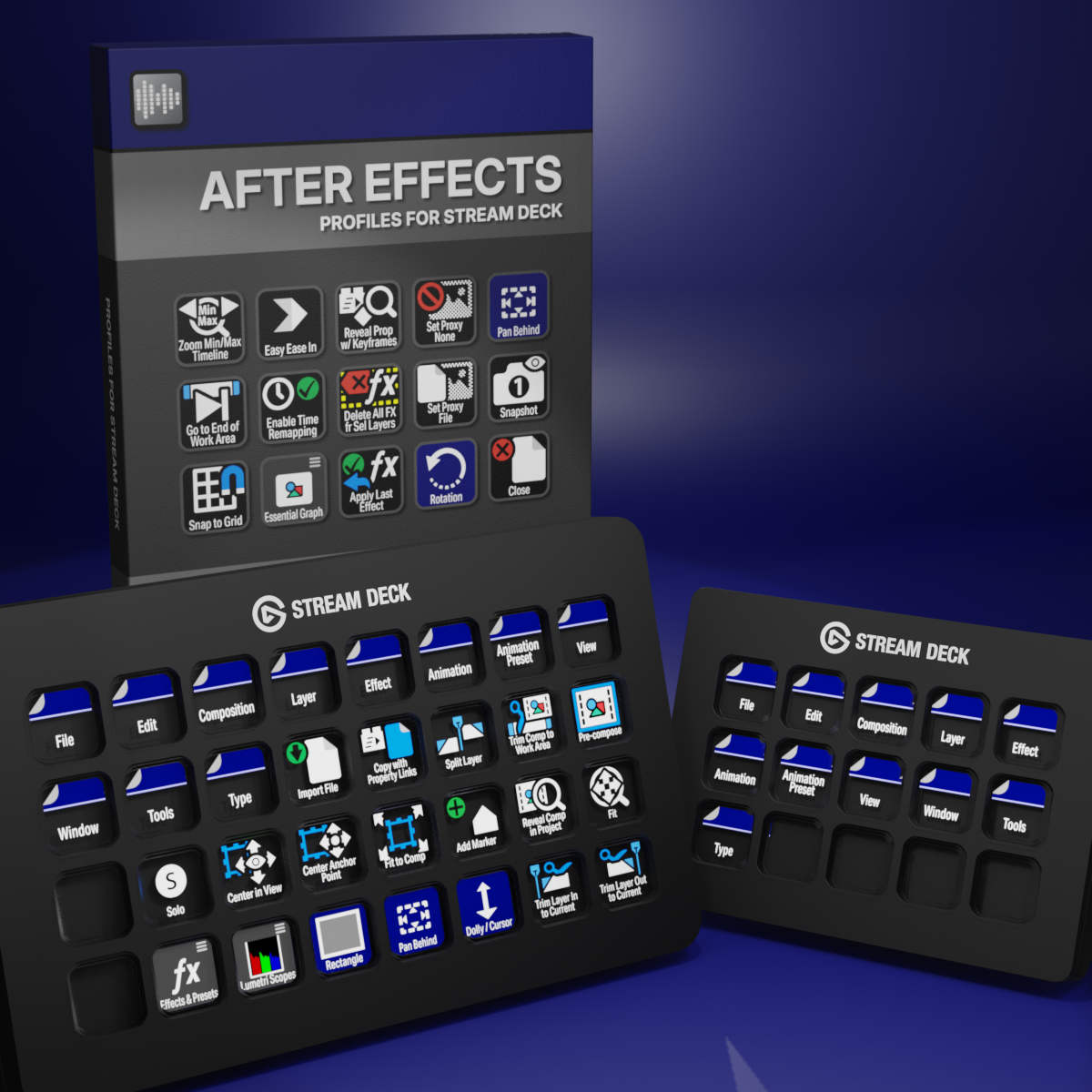
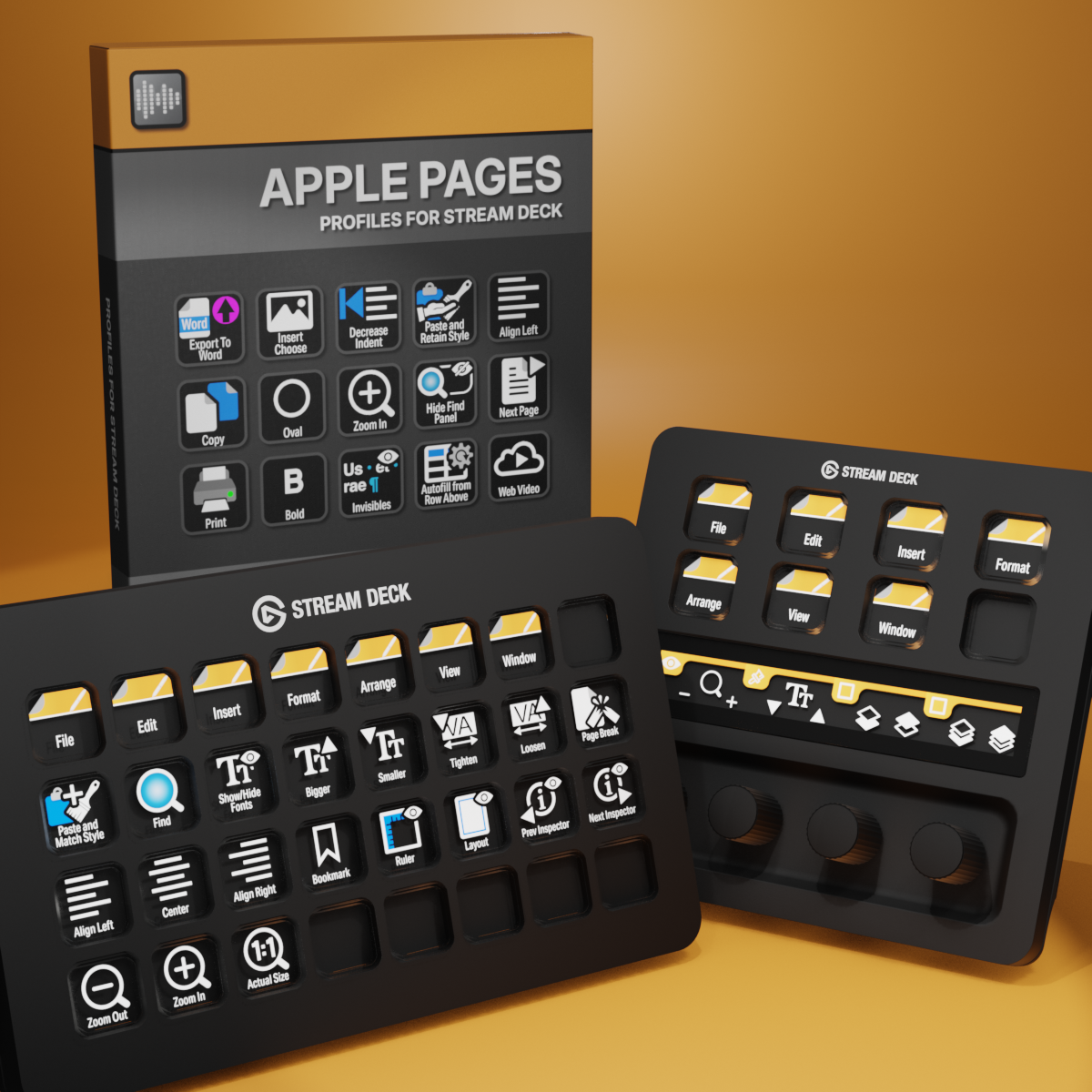
Custom Icons for Adobe After Effects. A sampler pack of both labelled and unlabelled icons for Stream Deck XL and Stream Deck Regular.