Installation
Overview
Control Adobe Illustrator from your Stream Deck. Over 600 built-in commands, instant tool switching, keyboard shortcuts, custom scripts, and full dial support — all at the press of a button.
Illustrator Commands gives you direct access to Illustrator's menu commands, tools, and scripting engine from any Stream Deck model. Three actions cover every use case: Run Menu Command for built-in commands and hotkeys, Run Script for custom ExtendScript, and Dial Command for Stream Deck+ rotary controls.
The plugin works on both macOS and Windows. Hotkeys execute at native keyboard speed. Menu commands go through Illustrator's scripting engine and complete in under a second.
Requirements
macOS 10.15 (Catalina) or later
Windows 10 or later
Elgato Stream Deck software 6.9 or later
Adobe Illustrator 2020 or later
All Stream Deck models: MK.2, +, XL, Mini, Neo
Dial features require Stream Deck+ or compatible model with encoder dials
Run Menu Command (Button)
The primary action. Assign any Illustrator menu command, tool, or keyboard shortcut to a Stream Deck button.
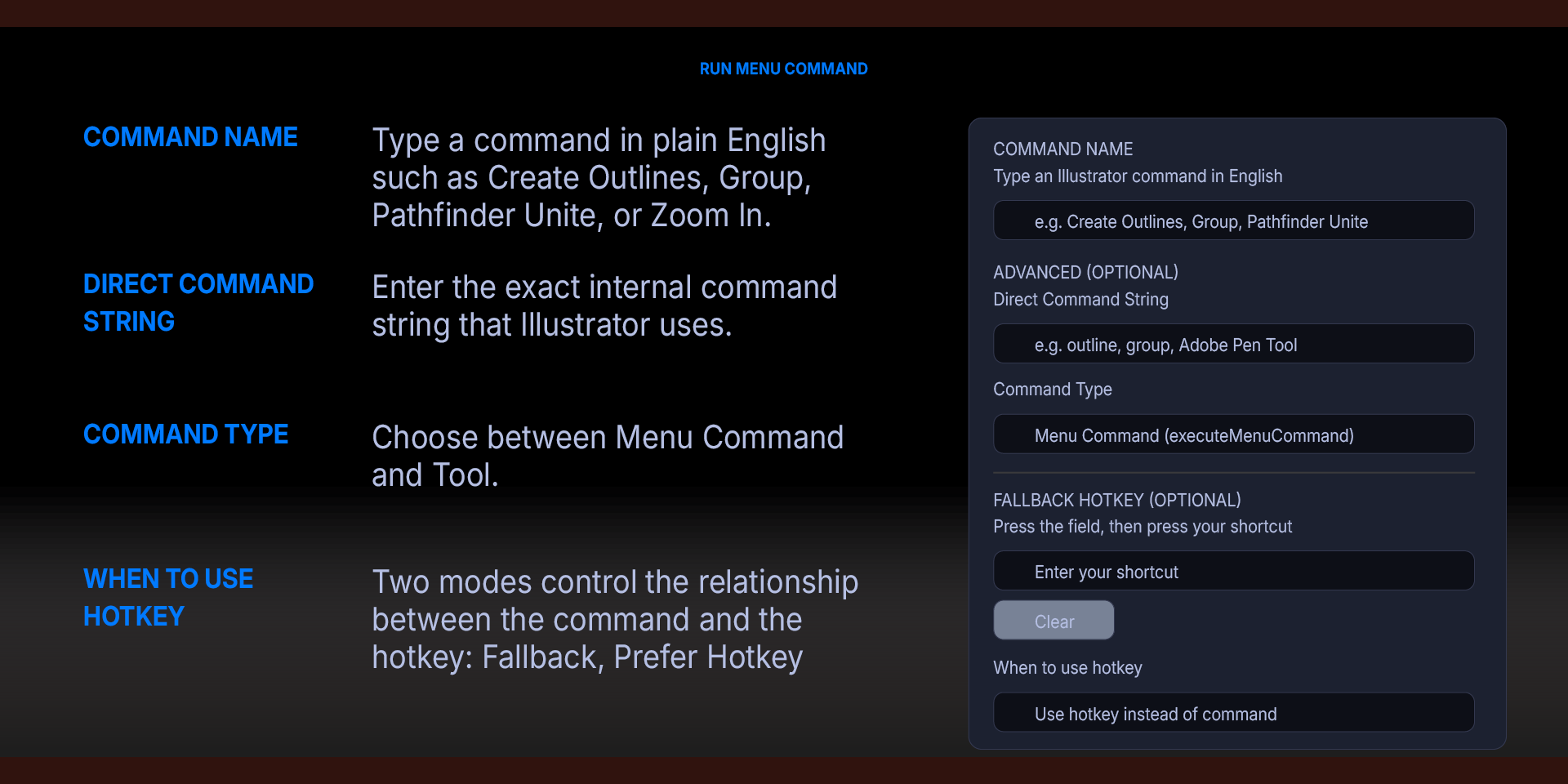
Command Name — Type a command in plain English such as Create Outlines, Group, Pathfinder Unite, or Zoom In. The plugin matches your input against over 600 built-in commands using exact, partial, and word-overlap matching.
Direct Command String — Enter the exact internal command string that Illustrator uses (for example: outline, group, selectall, zoomin). When this field is filled in, it bypasses the English name matching entirely for reliable, deterministic execution.
Command Type — Choose between Menu Command and Tool. Menu commands use Illustrator's executeMenuCommand method and cover all menu items: file operations, edit commands, object transformations, path operations, effects, view controls, and more. Tool mode uses selectTool to switch the active tool in the toolbar. Tool strings follow a naming pattern such as "Adobe Pen Tool" or "Adobe Shape Builder Tool."
Hotkey Capture — Record any keyboard shortcut directly in the settings panel. Press your modifier keys one at a time (Command, Shift, Option on Mac or Ctrl, Shift, Alt on Windows), then press the final key. The display updates as each modifier is added. Supports progressive capture — you do not need to press all keys simultaneously.
When to Use Hotkey — Two modes control the relationship between the command and the hotkey:
Fallback: the command runs first. If it fails, the hotkey fires automatically.
Prefer Hotkey: skips the command entirely and sends the shortcut directly. This is the fastest option, executing in milliseconds rather than the 300–500ms a scripted command requires. Use this for commands that are slow, crash-prone, or where you simply want maximum speed.
Hotkey-only buttons are also supported. Leave both command fields empty, configure only a hotkey, and the button simply sends the keyboard shortcut when pressed.
Run Script (Button)
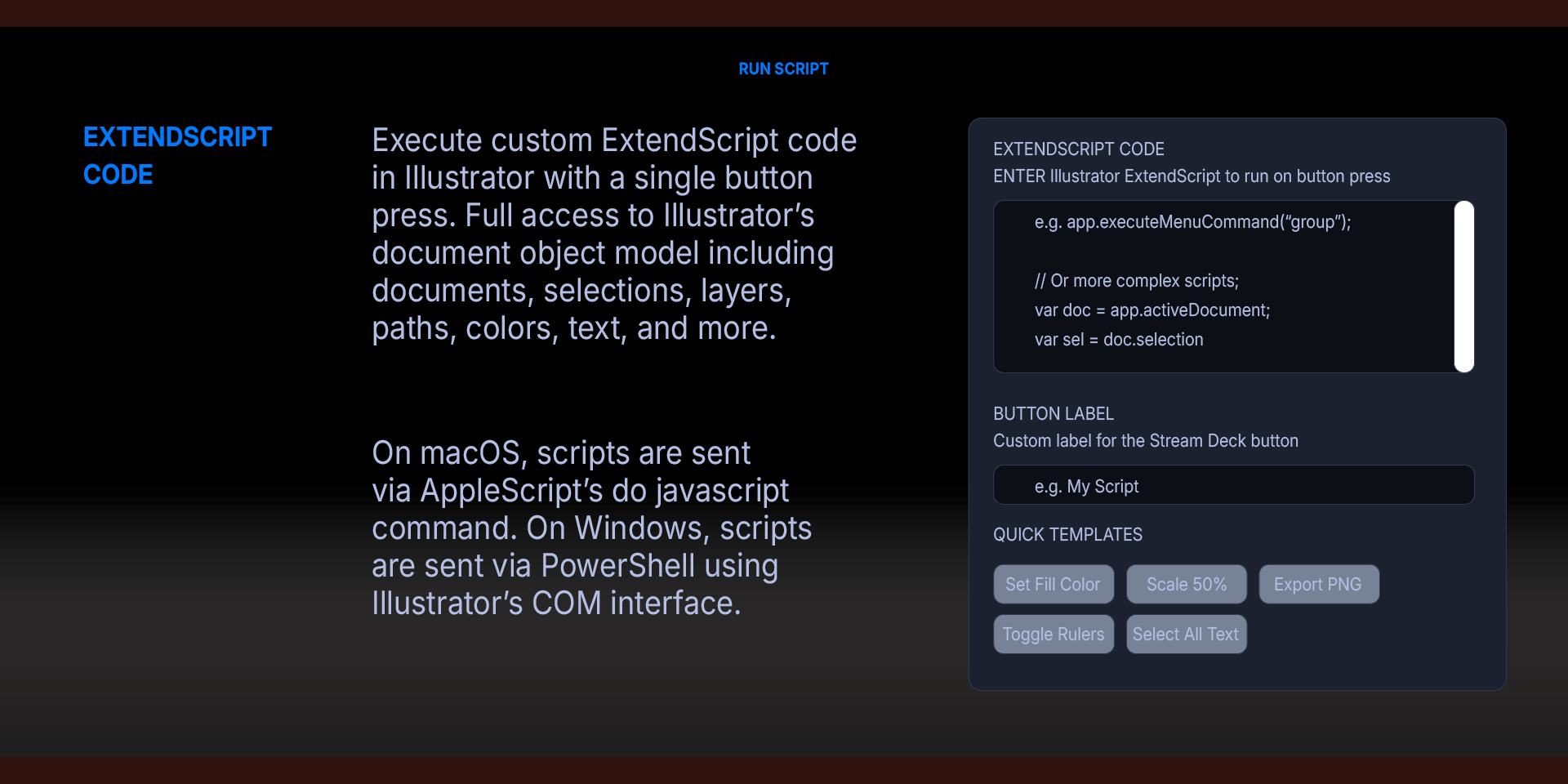
Execute custom ExtendScript code in Illustrator with a single button press. Full access to Illustrator's document object model including documents, selections, layers, paths, colors, text, and more.
ExtendScript Code — A multi-line text area for entering any valid ExtendScript. The entire contents are sent to Illustrator and executed when you press the button. The script is wrapped in a try/catch block for error handling.
Available variables:
app — the Illustrator Application object
app.activeDocument — the current open document
app.activeDocument.selection — the currently selected objects
Quick Templates — Template buttons below the code field provide starting points for common scripts: Set Fill Color, Scale 50%, Export PNG, Toggle Rulers, and Select All Text.
On macOS, scripts are sent via AppleScript's do javascript command. On Windows, scripts are sent via PowerShell using Illustrator's COM interface.
Dial Command (Stream Deck+)
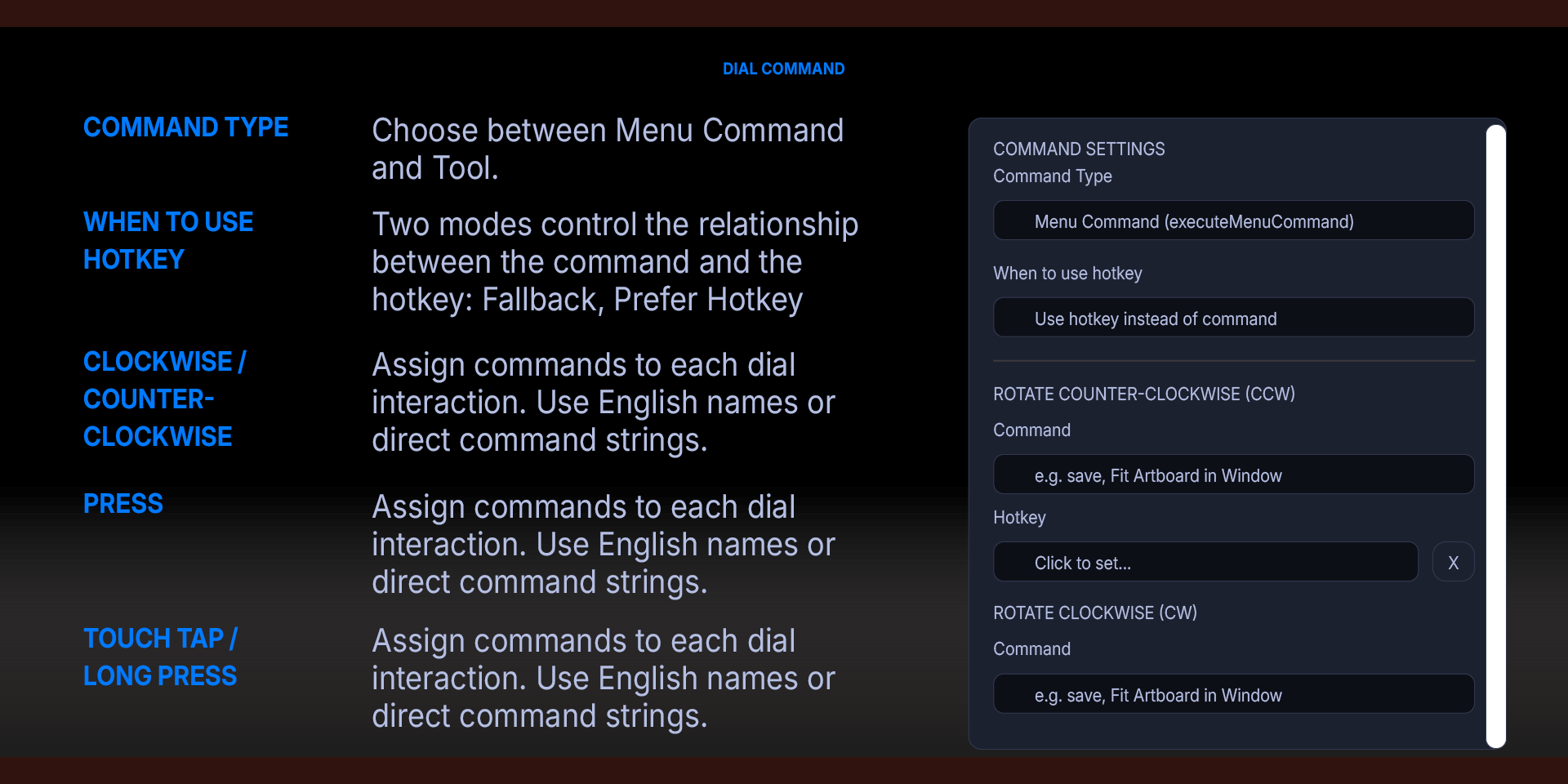
Assign different Illustrator commands to each dial interaction on the Stream Deck+. Each dial supports up to five independently configured actions.
Clockwise / Counter-Clockwise — Assign a command and optional hotkey to each rotation direction. Ideal for zoom in/out, undo/redo, bring forward/send backward, and other paired operations.
Press — Assign a command and optional hotkey to the dial press. Useful for complementary actions like Fit Artboard in Window, Save, or Group.
Touch Tap / Long Touch — Assign commands to the touchscreen tap and long press. Use for secondary actions like toggling views or resetting zoom.
Each of the five actions has its own independent command field, command type selector, and hotkey capture. The shared Hotkey Mode and Command Type settings apply to all actions on the dial.
Suggested Dial Configurations:
Zoom: CW = Zoom In, CCW = Zoom Out, Press = Fit Artboard in Window
Undo/Redo: CW = Redo, CCW = Undo, Press = Save
Layer Order: CW = Bring Forward, CCW = Send Backward, Press = Group
Built-In Commands
The plugin includes over 600 pre-mapped commands covering:
File operations (new, open, save, export, close)
Edit commands (undo, redo, cut, copy, paste, paste in place, paste in front/back)
Object operations (group, ungroup, lock, unlock, hide, show, expand, flatten)
Transform operations (move, rotate, scale, reflect, shear)
Path operations (join, average, outline stroke, offset path, simplify)
Pathfinder operations (unite, minus front, intersect, exclude, divide, trim, merge, crop)
Align and distribute (align left, center, right, top, middle, bottom, distribute spacing)
Type operations (create outlines, change case, find font, check spelling)
Select operations (select all, deselect, select same fill, select same stroke)
View operations (zoom in, zoom out, fit artboard, actual size, outline mode, pixel preview)
Effect operations (all Illustrator and Photoshop effects)
Window operations (show/hide panels)
Tool selections (all Illustrator tools)
Blend modes (multiply, screen, overlay, and more)
Image trace operations
Generative AI commands
Hotkey System
The hotkey system provides an alternative execution path for any command. On macOS, hotkeys are sent via AppleScript System Events directly to the Illustrator process with no delays. On Windows, hotkeys are sent via a lightweight compiled helper (sendkey.exe) that simulates key presses at the operating system level using the keybd_event API.
The Windows helper is compiled automatically from included source code the first time a hotkey is used. Compilation takes one to two seconds and uses the .NET Framework compiler included with every Windows installation. After compilation, hotkeys execute in approximately 20 milliseconds.
Supported keys include all letters, numbers, function keys (F1–F12), punctuation and symbol keys, arrow keys, and special keys (Delete, Backspace, Tab, Escape, Space, Home, End, Page Up, Page Down). All modifier combinations are supported: Ctrl/Cmd, Shift, Alt/Option, and any combination thereof.
Platform Details
macOS: Commands are sent to Illustrator via AppleScript's do javascript method. The plugin requires Automation permission, which macOS will prompt for on first use. Hotkeys are delivered through System Events.
Windows: Commands are sent via PowerShell using Illustrator's COM interface. Hotkeys are delivered via a compiled C# helper using the Windows keybd_event API with proper scan codes. The helper compiles automatically on first use and is stored at %appdata%\Deckly\IllustratorCommands\sendkey.exe.
Illustrator Detection: The plugin checks whether Illustrator is running before sending commands. If Illustrator is not detected, the button displays a warning indicator and does not attempt to launch Illustrator.
What’s Included
Illustrator Commands Plugin (com.deckly.illustratorcommands.streamDeckPlugin)
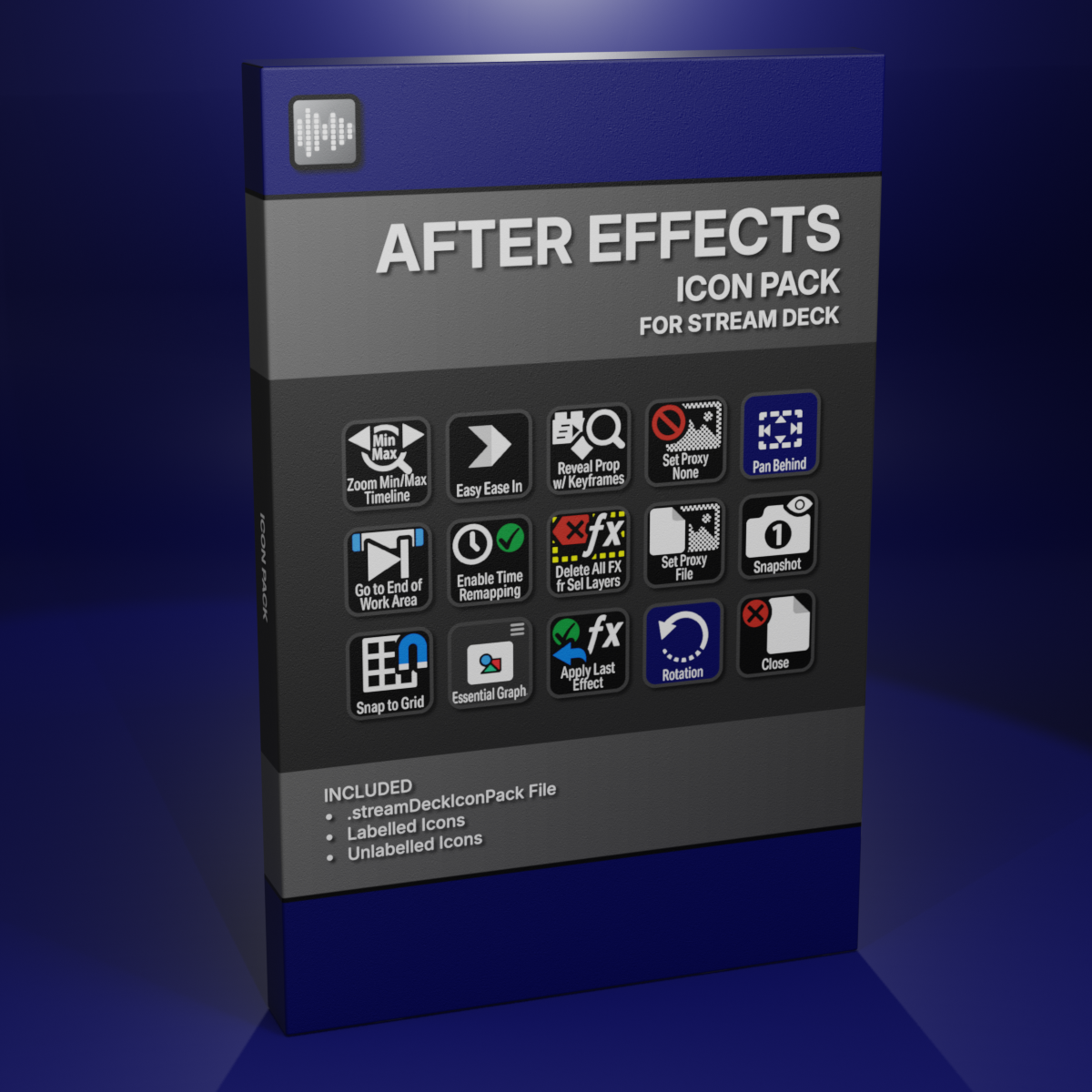
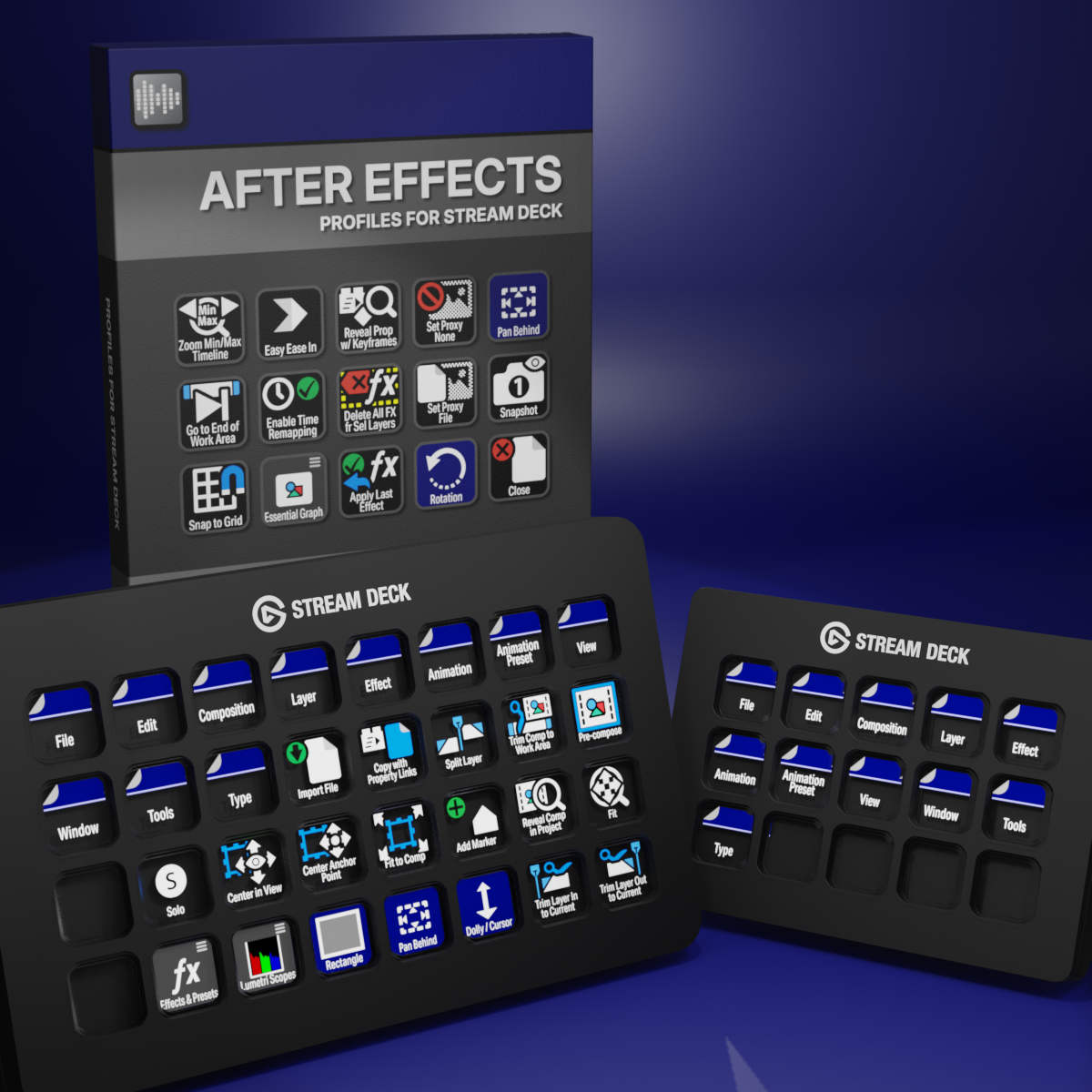
Custom Icons for Adobe After Effects. A sampler pack of both labelled and unlabelled icons for Stream Deck XL and Stream Deck Regular.