Installation
Overview
Apply fill and stroke colors to selected objects in Adobe Illustrator directly from your Stream Deck. Build a visual color palette across your buttons, or browse tints and shades in real time with the Stream Deck+ dial.
Illustrator Color Swatches turns your Stream Deck into a dedicated color palette for Illustrator. Two actions cover button and dial workflows: Apply Color for one-press color application with live preview, and Tint / Shade Dial for real-time color exploration on the Stream Deck+.
The plugin supports Hex, RGB, and CMYK color modes. CMYK values are sent directly to Illustrator's CMYK color space for accurate print color representation without conversion through RGB. The plugin works on both macOS and Windows.
Requirements
macOS 10.15 (Catalina) or later
Windows 10 or later
Elgato Stream Deck software 6.9 or later
Adobe Illustrator 2020 or later
All Stream Deck models: MK.2, +, XL, Mini, Neo
Dial features require Stream Deck+ or compatible model with encoder dials
Apply Color (Button)
Configure a specific color on a Stream Deck button and apply it to selected objects with a single press. The button displays a live preview of the configured color, making your Stream Deck function as a visual color palette.
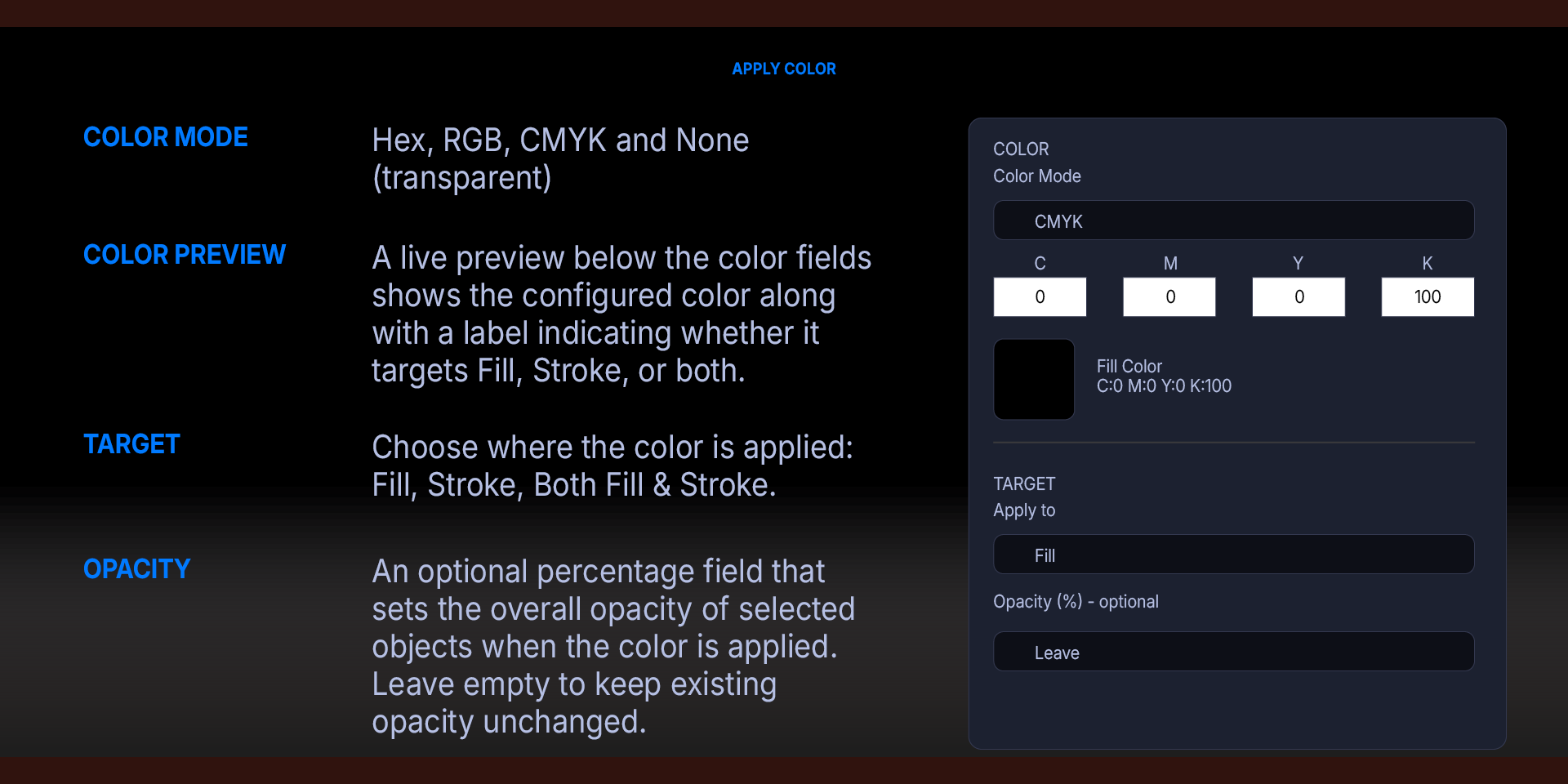
Color Mode — Four modes are available:
Hex: a color picker and text field for entering a standard hex code such as #FF5733. The picker and text field stay in sync.
RGB: three numeric fields for Red (0–255), Green (0–255), and Blue (0–255).
CMYK: four numeric fields for Cyan (0–100), Magenta (0–100), Yellow (0–100), and Key/Black (0–100). Values are sent directly to Illustrator's CMYK color space.
None (Transparent): removes the fill or stroke color from selected objects, setting it to no color.
Color Preview — A live preview below the color fields shows the configured color along with a label indicating whether it targets Fill, Stroke, or both. The preview updates immediately as you change any value.
Target — Choose where the color is applied:
Fill: applies the color to the fill of selected objects.
Stroke: applies the color to the stroke of selected objects.
Both Fill & Stroke: applies the same color to both simultaneously.
Opacity — An optional percentage field (0–100) that sets the overall opacity of selected objects when the color is applied. Leave empty to keep existing opacity unchanged.
Button Icon — The button automatically displays a colored icon matching the configured color. Fill colors show as a filled square, stroke colors show as an outlined square, and both mode shows a filled square with a colored border.
Tint / Shade Dial (Stream Deck+)
Set a base color and rotate the Stream Deck+ dial to explore lighter tints and darker shades of that color in real time. The touchscreen updates to show the current color before you apply it.
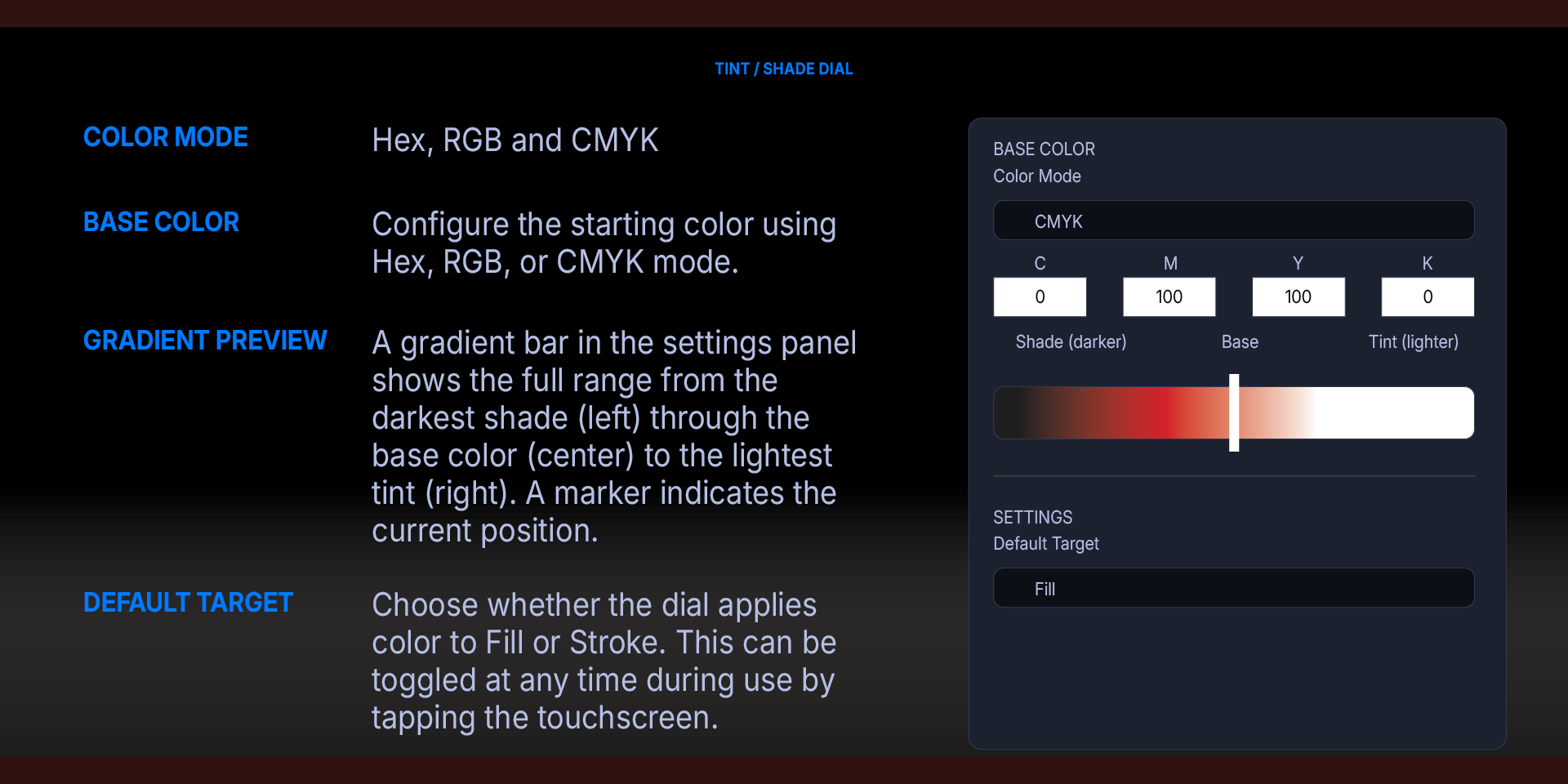
Base Color — Configure the starting color using Hex, RGB, or CMYK mode. The None mode is not available for the dial since a base color is required to calculate tints and shades.
Gradient Preview — A gradient bar in the settings panel shows the full range from the darkest shade (left) through the base color (center) to the lightest tint (right). A marker indicates the current position.
Default Target — Choose whether the dial applies color to Fill or Stroke. This can be toggled at any time during use by tapping the touchscreen.
Dial Interactions:
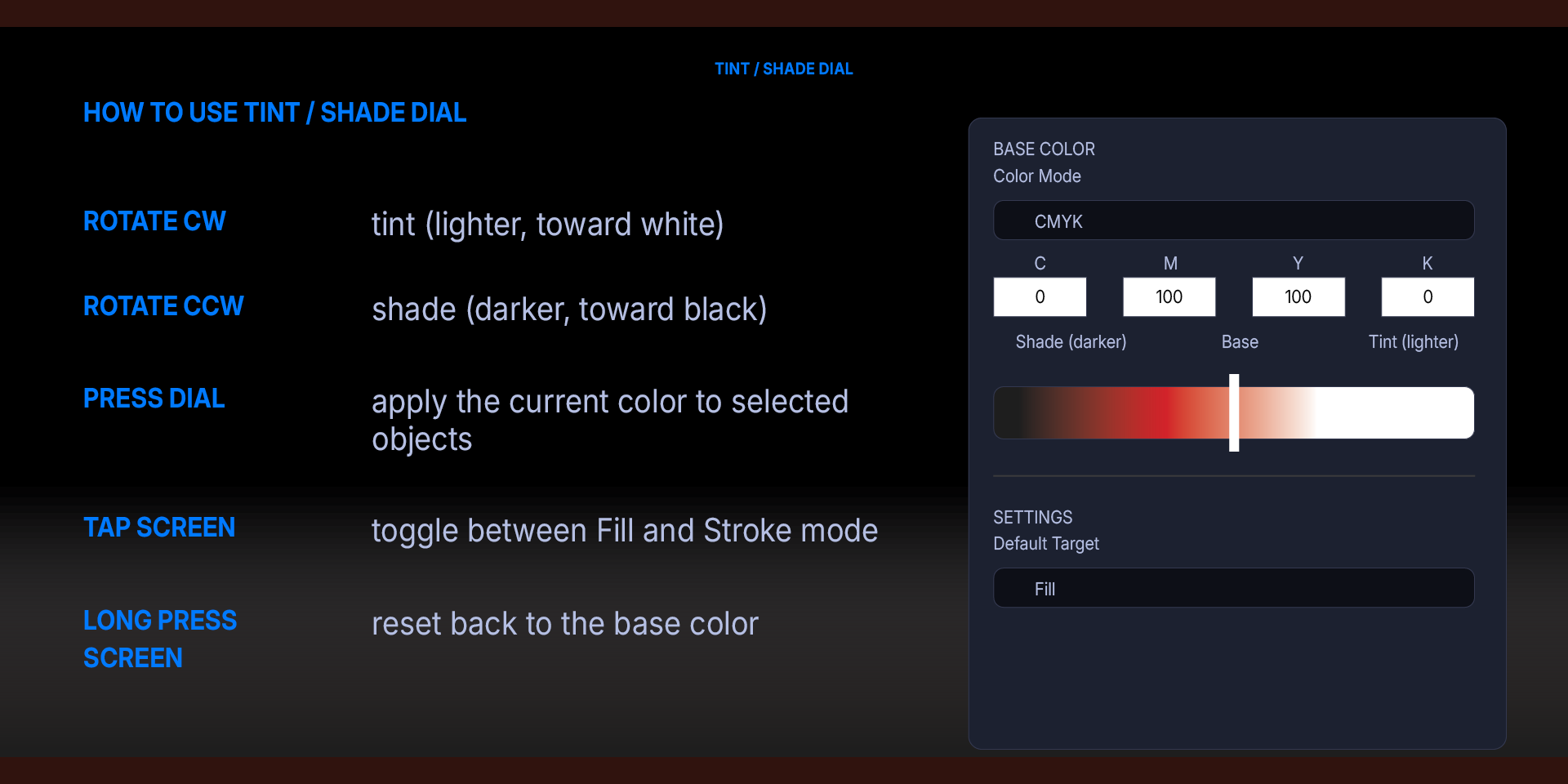
Rotate Clockwise: moves toward a tint. Each click mixes the base color with white, producing a progressively lighter version. The touchscreen updates in real time.
Rotate Counter-Clockwise: moves toward a shade. Each click mixes the base color with black, producing a progressively darker version.
Press the Dial: applies the current color (including any tint or shade adjustment) to the selected objects in Illustrator.
Tap the Touchscreen: toggles the target between Fill and Stroke mode. The display updates to indicate the current mode.
Long Press the Touchscreen: resets the dial back to the base color, clearing any tint or shade adjustment.
How Tint and Shade Work:
Tinting mixes the base color with white. At the maximum tint, the color approaches pure white. Shading mixes the base color with black. At the maximum shade, the color approaches pure black. The base color sits at the center of this range. The dial moves through this range incrementally, allowing you to find exactly the variation you want before applying.
Color Modes
Hex — Standard web hex codes. Enter with or without the # prefix. The built-in color picker provides visual selection.
RGB — Red, Green, Blue values from 0 to 255. Use when you have exact RGB specifications from a design system or style guide.
CMYK — Cyan, Magenta, Yellow, Key (Black) values from 0 to 100. Values are sent directly to Illustrator's CMYK color object. This ensures accurate print color representation without any conversion through RGB, which can shift CMYK values. Use this mode when preparing documents for print.
None (Transparent) — Available on the button action only. Removes the fill or stroke, setting it to no color. Useful for quickly clearing a fill or stroke from selected objects.
Platform Details
macOS: Color scripts are sent to Illustrator via AppleScript's do javascript method. The plugin requires Automation permission, which macOS will prompt for on first use.
Windows: Color scripts are sent via PowerShell using Illustrator's COM interface.
Illustrator Detection: The plugin checks whether Illustrator is running before sending commands. If Illustrator is not detected, the button displays a warning indicator.
Usage Tips
Build a color palette. Configure a row of Apply Color buttons with your brand colors, design system swatches, or frequently used colors. Each button shows a colored preview, giving you a visual palette directly on the Stream Deck.
Explore color variations. Use the Tint / Shade Dial with a base brand color. Rotate to find the right shade for shadows or the right tint for highlights and backgrounds, then press to apply.
CMYK for print work. When preparing documents for print, use the CMYK color mode to ensure colors are specified in the correct color space without any RGB conversion artifacts.
Combine with the Commands plugin. Use Apply Color to set a color, then use a Run Menu Command button from the Illustrator Commands plugin for follow-up actions like Expand Appearance, Create Outlines, or Group.
Use None to clear colors. Set a button to None mode targeting Fill to quickly remove fills from selected objects, or target Stroke to remove strokes.
What’s Included
Illustrator Color Swatch Plugin (com.deckly.illustratorcolorswatch.streamDeckPlugin)
Custom Icons for Adobe After Effects. A sampler pack of both labelled and unlabelled icons for Stream Deck XL and Stream Deck Regular.